

OpenClaw is an open source AI assistant (MIT license), formerly Clawdbot and then Moltbot, that you install on your own machine or on a rented server. You write to it from Telegram, WhatsApp or another messaging app, and it answers with the AI model you connect to it, Claude for example. It can also use tools and “skills”, instruction files that teach it a task. Claude works on the same principle: see how to create a Claude skill.
This guide follows the official documentation, docs.openclaw.ai, as of September 28, 2026: the server, the Telegram bot, the connection to Claude, the first exchange and a first skill you write yourself, then what the installation costs after day one.
The steps were not run on a server for this article, and the project moves fast (nine releases published on GitHub from September 1 to 23, 2026): if a command has changed, the cited page is the one to trust.
How OpenClaw works in practice
OpenClaw runs a program, the Gateway, that receives your Telegram messages, passes them to the AI model, runs the allowed tools and sends back the answer. It keeps its configuration, your credentials and the history in ~/.openclaw. You supply three pieces: a machine that is always on, access to an AI model and a Telegram bot.
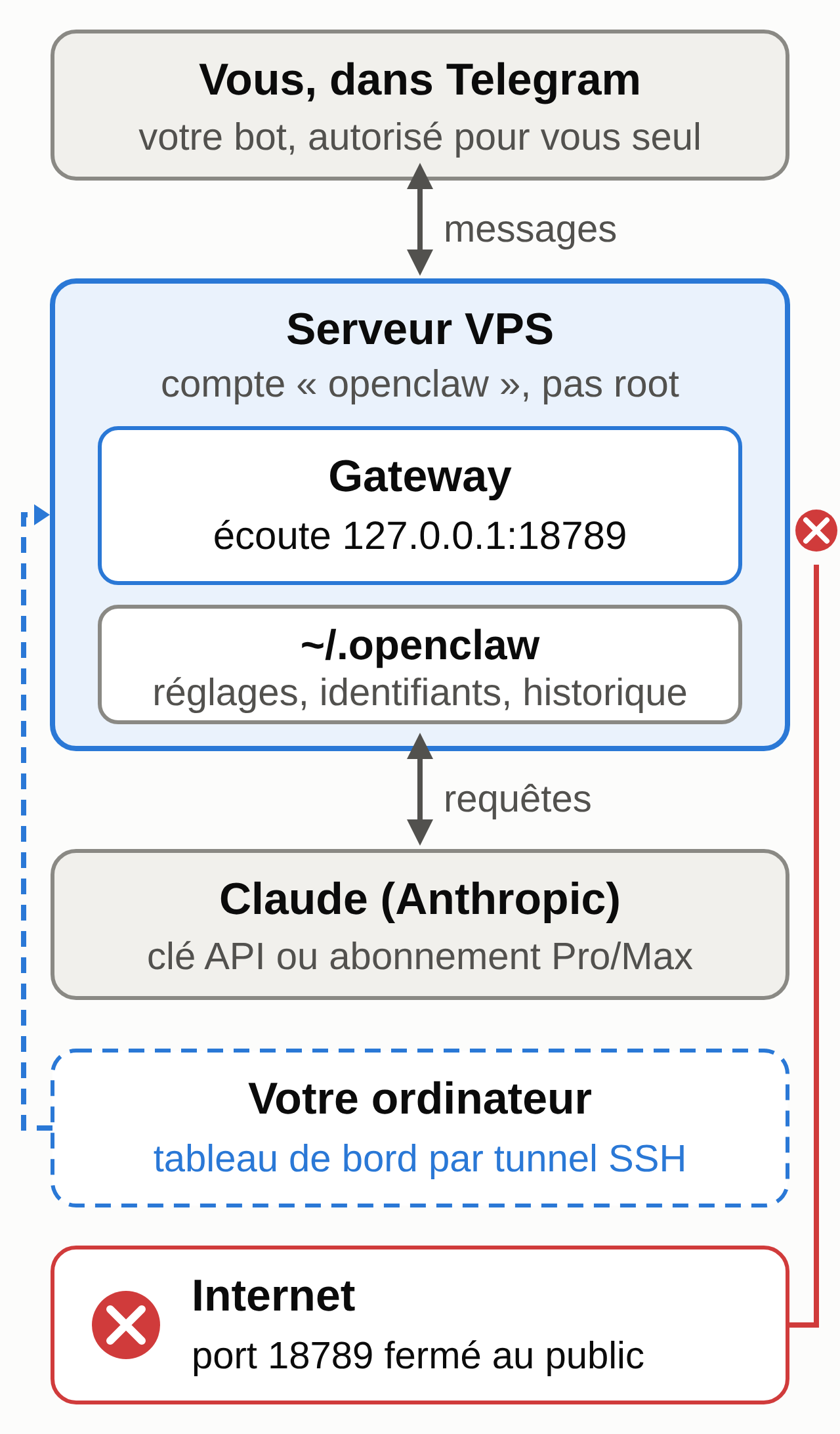
What you need before you start
- A Linux server running Ubuntu LTS. The official FAQ gives a minimum of 1 vCPU and 1 GB of RAM, and recommends 2 GB or more. With your Claude subscription (step 3), Claude Code also runs on the server and needs 4 GB of RAM: get 4 GB.
- Key-based SSH access to that server, and a terminal on your computer.
- Telegram on your phone.
- Access to Claude: an Anthropic API key (pay as you go) or a Claude Pro or Max subscription.
- No real data for testing. The examples are fictional and provided (in French): note-visite.txt, SKILL.md (zip), compte-rendu-attendu.txt, cout-mensuel-exemple.csv.
Why a server? According to the FAQ, on a laptop, sleep mode and restarts cut the assistant off.
Installing OpenClaw on a VPS, step by step
1. Rent and prepare the server
- Rent a VPS running Ubuntu LTS with at least 2 GB of RAM (4 GB if you go through the Claude subscription). Add your SSH key when you create it.
- Log in as root (
ssh root@SERVER_IP_ADDRESS) and update the system:apt update && apt upgrade -y. - Set up admin access before you install anything. The Linux Server page recommends either going through Tailscale or hardening SSH access. Do not open any other port.
- Keep this server for the assistant only. The documentation advises against signing in to your personal Google or Apple accounts or your password manager on it.
Check: you can log back in over SSH without a password, with your key.
2. Install OpenClaw and its user
Still as root, run the script from the install page. It installs Node.js if needed, then OpenClaw. The --no-onboard option postpones the configuration to step 3:
curl -fsSL https://openclaw.ai/install.sh | bash -s -- --no-onboard
This command runs a downloaded script. To read it first, download it with curl -fsSL https://openclaw.ai/install.sh -o install.sh, open it, then run bash install.sh --no-onboard.
Then create the regular account that will run the assistant. The documentation keeps root for preparing the system and considers running the Gateway as root dangerous (DigitalOcean guide, Gateway page):
adduser openclaw
usermod -aG sudo openclaw
loginctl enable-linger openclaw
su - openclaw
enable-linger lets this account’s service start with the server, even when nobody is logged in. All the openclaw and claude commands that follow are run from this account.
Check: openclaw --version prints a version number.
If something gets stuck: openclaw doctor reads the state of the installation and lists what is wrong.
3. Connect Claude
The Anthropic page describes two routes.
Route A, the API key (pay as you go).
- Create a key in the Claude Console.
- On the console’s Billing page, in the Spend limits section, set a monthly spending limit lower than your tier’s cap. Requests stop when it is reached.
- Run
openclaw onboard, choose Custom setup, then “Anthropic API key”, and paste the key. - Check:
openclaw models list --provider anthropic.
Route B, your Claude Pro or Max subscription, through Claude Code.
- Install Claude Code on the server, from the
openclawaccount:curl -fsSL https://claude.ai/install.sh | bash. - Sign in:
claude auth login. On a server, copy the address shown into your computer’s browser, sign in, then paste the code that appears into the terminal. - Run
openclaw onboard. Quick start detects the Claude Code login and checks it with a real exchange; with Custom setup, choose “Claude CLI”.
On route B, according to Anthropic’s pages checked on September 28, 2026, usage goes through unmodified Claude Code and draws on your subscription’s limits, which are set for ordinary individual use. Anthropic can change these rules. For shared use or predictable spending, the OpenClaw documentation recommends the API key.
In both cases, if onboarding leaves the Gateway running in the terminal, stop it with Ctrl+C: the configuration is kept, and step 4 restarts it in the background.
To choose the model, see our guide to choosing your AI model and organizing work across several agents. OpenClaw’s page on prompt injection adds a rule: as soon as the assistant uses tools or reads outside content, pick the newest and most capable model.
4. Keep the assistant running at all times
openclaw gateway install
openclaw gateway status
The first command installs a systemd service for the openclaw account, which restarts with the server thanks to enable-linger. The second should show a Gateway listening on port 18789.
By default, the Gateway only accepts connections from the machine itself: keep that port closed to the public. To open the dashboard, create an SSH tunnel from your computer:
ssh -N -L 18789:127.0.0.1:18789 root@SERVER_IP_ADDRESS
On the server, openclaw dashboard --no-open prints a one-time access link. Open it in your computer’s browser while the tunnel is up.
Check: the dashboard loads through the tunnel, and nothing answers on SERVER_IP_ADDRESS:18789 from outside.
5. Create the Telegram bot with BotFather
- In Telegram, open a chat with @BotFather. The documentation asks you to check that the handle is exactly
@BotFather. - Send
/newbot, give a display name, then a username that ends in “bot”. - BotFather sends you back a token. Treat it like a password.
- On the server:
openclaw channels add --channel telegram --token YOUR_TOKEN. - Check:
openclaw channels status --probe.
6. First message and lockdown
- Send “hello” to your bot. By default, OpenClaw does not respond to unknown users: it replies with a pairing code and your numeric Telegram ID (“Your Telegram user id”). Write that number down.
- On the server:
openclaw pairing list telegram, thenopenclaw pairing approve telegram CODE. The code expires after one hour. - Send another message: the assistant answers.
- Then lock access down to you alone. For a bot with a single owner, the Telegram access control page recommends an allowlist with your numeric ID.
- In
~/.openclaw/openclaw.json, underchannels, edit thetelegramblock as shown below. Keep the token line written in step 5; the ID is fictional:
telegram: {
  enabled: true,
  botToken: "…", // do not change
  dmPolicy: "allowlist",
  allowFrom: ["123456789"],
}
- Validate the file:
openclaw config validate.
Check: another Telegram account that writes to the bot gets no answer and no pairing code.
7. Write your first skill
A skill is a folder containing a SKILL.md file: a name, a one-line description, instructions. Write your own rather than installing one from a stranger (the reason is explained further down).
- Create the folder:
mkdir -p ~/.openclaw/workspace/skills/visit-report. - Create
~/.openclaw/workspace/skills/visit-report/SKILL.mdwith this content (the downloadable SKILL.md (zip) is the French version):
---
name: visit-report
description: Turns a customer visit note into a structured report in English, without inventing anything.
---

# Visit report

When the user sends a customer visit note and asks for a report:

1. Write the report in English with exactly these sections, in this order:
   - Customer and date of the visit
   - What was observed
   - What was decided
   - Actions to take (action | owner | deadline)
   - Points to clarify
2. Use only the information in the note. Only assign a deadline, an amount or an owner to an action if the note clearly ties them to that action. Otherwise, write "to be specified" and add the question under "Points to clarify".
3. The author of the note is "you". Keep names exactly as written.
4. Do not calculate any price, do not send anything to anyone and do not change any file. Answer only in the conversation.
5. End with the line: "Draft to review before sending."
- Check that it is loaded:
openclaw skills list. - In Telegram, send
/newto open a session that sees the new skill. - Send this message, followed by the text of note-visite.txt (shown here in English):
Write the report for this visit note:

Visit to Boulangerie Lemaire, Tuesday, October 6, 2026. Met with Claire Lemaire, the manager.
The oven for the morning bake has been heating poorly for two weeks. She has already called the manufacturer, no answer so far.
She wants to replace her refrigerated display case, a 1.5-meter model, by the end of October, and asks me for a quote.
We decided I would come back one morning to see the oven running.
I have to send her the display case quote. She has to send me the oven's model number.
She does not know whether her insurance covers the oven breakdown.
Send it as text rather than as a voice message. The /skill visit-report command also calls the skill by name.
Expected result (file compte-rendu-attendu.txt, in French):
Customer and date of the visit
- Boulangerie Lemaire, Claire Lemaire (manager), Tuesday, October 6, 2026

What was observed
- The oven for the morning bake has been heating poorly for two weeks.
- The manufacturer was called, with no answer to date.
- Claire Lemaire wants to replace her 1.5-meter refrigerated display case by the end of October.

What was decided
- You come back one morning to see the oven running.

Actions to take (action | owner | deadline)
- Send the quote for the 1.5-meter refrigerated display case | you | to be specified
- Send the oven's model number | Claire Lemaire | to be specified
- Come back one morning to see the oven running | you | to be specified

Points to clarify
- When should the quote be sent, given that the display case must be replaced by the end of October?
- Which morning for the visit?
- Does Claire Lemaire's insurance cover the oven breakdown?

Draft to review before sending.
Human check: the wording can vary, the substance cannot. Compare each line with the note: no visit date, no price and no oven brand should appear, since the note gives none. “By the end of October” refers to the new display case: the quote deadline stays “to be specified” and becomes a question.
Common mistake and fix: the assistant invents a date (“visit on Thursday, October 8”), lists “end of October” as the quote deadline, or ignores the skill. Reread rule 2 in the file, check with openclaw skills list that the name is exactly visit-report, then send /new again and start over.
8. Run the security check
openclaw security audit
openclaw security audit --deep
The audit command flags risky settings, and --fix applies the safe fixes. Run it again after every configuration change.
What about WhatsApp?
OpenClaw also answers on WhatsApp. The WhatsApp page describes WhatsApp Web-style linking by QR code, through Baileys, a library whose authors state it has no connection with WhatsApp, and recommends a dedicated number. Read WhatsApp’s terms of service before linking a number you care about. On Telegram, a bot token is enough.
Running it after day one
The installation takes one session. Running it lasts as long as the assistant does.
Exposed instances
On January 31, 2026, Censys counted 21,639 OpenClaw instances reachable from the internet, most of them still protected by a token. On February 11, 2026, the STRIKE team at SecurityScorecard found more than 40,000 in 24 hours of scanning, and flagged 35.4% of the deployments it observed as vulnerable.
With the CVE-2026-25253 flaw (CVSS 8.8, fixed in version 2026.1.29), a booby-trapped link was enough to make the Gateway send its access token to a third-party server.
For you, that means: Gateway limited to the machine (step 4), port 18789 never exposed without authentication, and updates applied quickly.
Third-party skills and prompt injection
In February 2026, Koi Security found 341 malicious skills on ClawHub, the public skill catalog. Some of them contained a fake “prerequisite” that got users to download and run data-stealing software. On June 23, 2026, Palo Alto Networks’ Unit 42 described five more malicious skills, spotted between February and May 2026, that ClawHub’s filtering had not blocked.
ClawHub now shows the status of its scans (VirusTotal, ClawScan), which openclaw skills verify queries. The documentation asks you to treat any third-party skill as unverified code, to read before you turn it on.
Prompt injection, for its part, comes in through any content the assistant reads: a web page, an email, an attachment. The more tools and access it has, the more damage a booby-trapped piece of content can do.
Updates
On GitHub, the OpenClaw repository published 722 security advisories between January 31 and September 11, 2026, including 75 between September 1 and 11. Automatic Gateway updates are off by default: it is up to you to run openclaw update, or to turn them on knowing what that means.
The documentation requires a verified backup before every major update, and, for installations older than June 2026, an intermediate upgrade to version 2026.9.5. If the update fails with global-install-permission-denied (OpenClaw was installed as root in step 2), the message names the folder involved and the action to take, detailed on the update troubleshooting page.
Backups and monitoring
openclaw backup create --verify produces a verified archive. It contains your credentials and your conversations: the documentation asks you to encrypt it and store it somewhere safe, and rules out copying the databases by hand while the assistant is running.
Also decide who notices an outage, and how. openclaw gateway status and openclaw doctor tell you what is wrong when someone runs them.
The bill and the time
Here is a sample monthly budget (file cout-mensuel-exemple.csv). Public prices were recorded on September 28, 2026; replace the assumptions with your own numbers.
| Item | Amount before VAT | Type |
|---|---|---|
| VPS server, 2 vCores, 4 GB (OVHcloud VPS-1, “starting at” price) | €3.81 | public price |
| External storage for the encrypted backups | €2.00 | assumption |
| Claude Pro subscription, billed monthly | €18.00 | public price |
| Upkeep time: 2 h at €60 an hour | €120.00 | assumption |
| Total | €143.81 |
Both public prices exclude VAT: add your country’s standard rate, 20% in France, 21% in Belgium. The Claude Pro price is the one shown to a Belgian account on claude.ai/upgrade on September 28, 2026, before tax.
With route A, the Claude line becomes usage-based: on the pricing page, a million tokens costs $2 for input and $10 for output with Sonnet 5, and $4 and $20 with Opus 5.5. On every exchange, the assistant sends the model its instructions and the relevant context again, billed as input. Hence the spending limit in step 3.
In this example, the server costs little. The main item is the time of the person who updates, checks and repairs.
Who should install it themselves
In France, CERT-FR’s bulletin CERTFR-2026-ACT-016 (ANSSI, April 13, 2026) covers autonomous assistants like OpenClaw on organizations’ workstations: no production deployment, use limited to isolated test environments with no sensitive data, tools cut down to what is strictly needed, and human approval before any action with side effects.
Install it yourself if:
- a terminal, SSH and a configuration file do not scare you;
- you test it on fictional or low-stakes data;
- you are willing to follow the releases and run the audit every week.
Get help, or give it up, if:
- the assistant has to read customer, patient or employee data. You remain the data controller under the GDPR, with the APD as the authority in Belgium and the CNIL in France, and your messages go to the model provider;
- it has to write to your email, your calendar or your business software;
- nobody can watch the server or react to a vulnerability disclosed on a Friday night.
If what you mostly want is an agent with no server to manage, start by building an AI agent without coding. And if the real question is whether to hand your admin work to a person or a tool, read freelance administrative assistant or AI assistant.
Hermes Agent and NanoClaw, the open source alternatives
Other public projects meet the same need. Hermes Agent, published by Nous Research under the MIT license, connects to Telegram, Discord, Slack, WhatsApp and Signal among others, accepts many model providers and creates its own skills from usage. NanoClaw, also under the MIT license, presents itself as a lighter version of the same idea, with a codebase short enough to be read in full.
You install and run both yourself, and they raise the same questions about the server, updates, backups and access.
Your upkeep routine
Keep this at hand after the installation:
- Every week: read the security advisories in the GitHub repository, then
openclaw backup create --verifyandopenclaw update. - Every week:
openclaw security audit --deep, then fix the alerts. - Every month: restore a backup on another machine, to check that it works.
- Every month: compare your Claude usage with the spending limit.
- Before any new skill: read its
SKILL.mdand its scripts in full, thenopenclaw skills verify @author/skill-name. - Before any new access (email, calendar, software): minimal permissions, read-only first.
- After any change:
openclaw gateway statusand a test message from Telegram.
Someone has to keep it running
Technically, OpenClaw gives you an assistant in Telegram that uses tools and learns tasks. The limit is in the upkeep: someone has to maintain the server, apply the patches, check the backups and connect the assistant to your tools with the permissions it needs, and only those. For a freelancer or a small team, that is regular work on top of running the business.
If what you are mostly after is the result, a personal assistant in Telegram with no server to manage, MACCUS offers one. Hosting and updates are handled for you, and connecting it to your tools is decided case by case, with the access you choose. Let’s talk about what you want to hand off to it.