

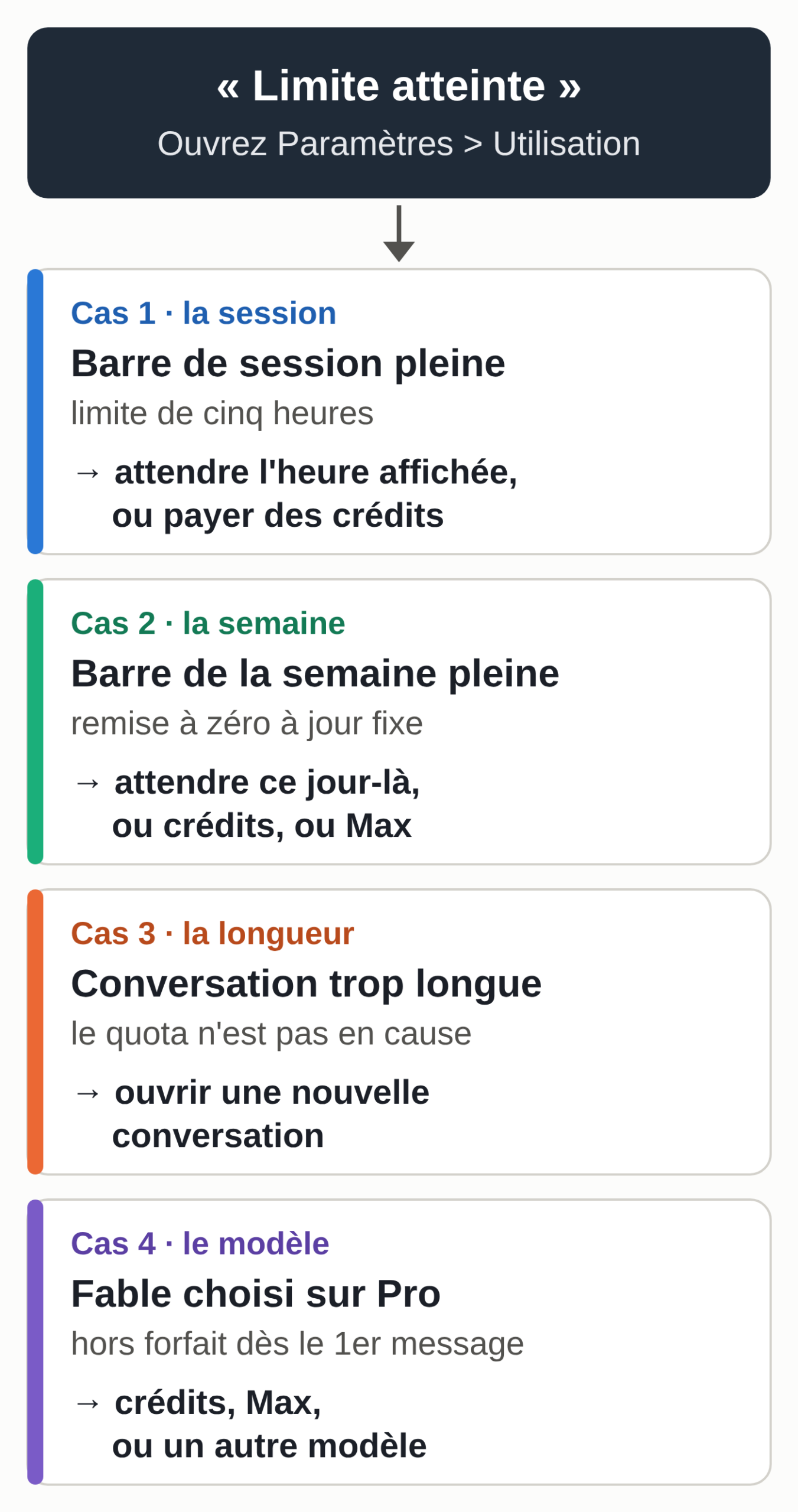
The “limit reached” message on Claude Pro usually means one of your two usage allowances has run out: the one for the five-hour session, or the one for the week. Anthropic doesn’t publish a number of messages, because a message doesn’t always cost the same amount. The model you pick, the effort level, the length of the conversation, the files and the tools all change how much you use.
This guide helps you identify which limit you hit, see what uses the most, then apply seven settings that stretch your plan. It also gives the math in euros that tells you when to pay for credits or move up to Max.
The facts come from Anthropic’s help center and Claude’s pricing page, reread on October 6, 2026. These rules change often: check the date before you rely on them.
Which limit did you hit?
Open Settings > Usage, on the web or in the desktop app. Two kinds of bars appear there.
- The current session. Pro has a limit per five-hour session, reset every five hours. The bar shows how much you’ve used and the time left before the reset.
- The weekly limits. Paid plans also have a weekly cap, across all models. It resets on a fixed day and time specific to your account, no matter what day you subscribed. When you’re told you have to wait until Sunday, this is the limit in question.
Two other situations look like a usage limit without being one.
- The conversation has grown too long. That is the length limit, tied to the context window (the amount of text Claude can handle in a single conversation). Start a new conversation: your allowance isn’t the problem.
- You picked a Fable model on Pro. On Pro, Fable 5 and Fable 5.1 aren’t included in the plan: they draw on usage credits from the very first message. Without credits turned on, switch models. On Max, Fable can use up to half of the weekly limit.
The web, the desktop app, mobile, Cowork and Claude Code all draw from the same allowance. An hour of Claude Code therefore cuts what’s left for your conversations, in the current session and for the week. The usage differences between Free, Pro, Max and Team are laid out in our comparison of Claude plans.
What drains your plan fastest
Anthropic lists the factors that count against the limit. Here they are, in the order you can act on them.
- The model. According to the Claude Code documentation, an exchange with Opus costs several times more than one with Sonnet, and Sonnet more than Haiku.
- The effort level. High effort gives more thorough answers but uses more tokens (the units of text Claude reads and writes), so you reach the limit sooner.
- The length of the conversation. The longer it gets, the more each new message costs. When it nears the length limit, Claude summarizes older messages to keep going (if code execution is turned on), and Anthropic notes that these long conversations use more.
- Attached files, depending on their size.
- Tools. Web search, Research mode and connectors use a lot of tokens; Research mode runs several searches in a row.
- Multistep tasks: running code, creating files, browsing websites. Each step uses some of your allowance. In Cowork, auto mode checks more things and uses more than the other modes.
- Creating artifacts. To find out which ones are worth that usage, see five artifacts that help freelancers.
One mechanism works in your favor: project content is cached and counts less when you reuse it.
Does Pro give better answers, or just more usage?
Many new subscribers ask this. Anthropic doesn’t promise more relevant answers on Pro with the same model: Sonnet and Haiku are also offered on the free plan. What Pro adds, according to Anthropic: at least five times Free’s usage per five-hour session, access to Opus, Research mode, Claude Code, more than five projects, Claude in Chrome and in Microsoft 365, and delegated and scheduled tasks.
The quality of an answer depends mostly on the model and the effort you choose. That is where the settings below come in. If you’re thinking of switching to ChatGPT, compare them on your own tasks with our guide Claude or ChatGPT for a small business.
Seven settings to make it through the month
Each setting is based on an Anthropic help page. The ten-minute test further down lets you measure the effect on your own usage bar.
1. Pick the model yourself, in every conversation
The model and the effort level appear next to the send button. Look at them before your first message.
- Click the model name.
- Pick the model that fits the task. “More models” shows the rest of the list.
- You can switch mid-conversation: the new setting applies from the next response.
For Claude Code, Anthropic gives a rule that carries over well to everything else. Sonnet handles the vast majority of the work. Save Opus for hard or high-stakes questions, such as reviewing a forty-page contract. Haiku is enough for mechanical work: rewording, sorting, pulling out a list. The current Haiku, Claude Haiku 5.5, came out on October 7, 2026, and is available on every plan. One efficient habit: do the planning with Opus, then switch back to Sonnet for the execution, in the same conversation.
On Pro, leave Fable alone unless you’re willing to pay for credits. To pick a model for the task, at Anthropic or elsewhere, see our guide to choosing an AI model and organizing several agents.
2. Lower the effort for routine work
Effort is set in the same menu: click the model name, then “Effort”. Anthropic recommends Low or Medium for routine tasks, which stretches your usage. High gives the best balance between quality and speed. Very high and Max are for long tasks and the most in-depth analysis, and cost the most.
Thinking (the reasoning Claude does before it answers) is a separate setting. On Sonnet 5.5, Opus 5.5, Fable 5.1 and Opus 5, it can’t be turned off, so effort is the setting to adjust. On the other models, turn it off when the task is simple.
3. One topic per conversation, and a new one when it gets long
A conversation that has covered a quote, then a follow-up email, then a LinkedIn post carries all three topics into every new message. Anthropic advises starting a new conversation for an unrelated topic, and when you’re nearing your limit in a long conversation.
To keep everything when you switch conversations, ask for a handoff first. Prompt to copy into the old conversation:
We're going to continue this work in a new conversation.
Write a handoff of 10 lines at most:
1. The goal of the work, in one sentence.
2. The decisions already made, with the exact figures.
3. What's left to do, in order.
4. The files or documents I'll need.
Don't add anything that wasn't said in this conversation.
Example of the expected output, for a fictional conversation about a quote:
Goal: quote for Mr. Durand's kitchen renovation (fictional client).
Decisions: oak countertop, 4.20 m; installation on November 18;
5% discount accepted on labor.
Left to do: 1) price the sink and faucets, 2) write
the payment terms, 3) review the total.
Documents: the kitchen floor plan (PDF) and the 2026 supplier price list.
Check the handoff before pasting it: every figure must appear in the old conversation. Then paste it as the first message of the new one. If the summary makes up a decision, fix it by hand: that’s quicker than reopening the old thread.
In Claude Code, the equivalent takes two commands: /clear when you switch tasks, /compact to summarize a long session and keep going.
4. Put your reference documents in a project
A document loaded into a project is cached. As long as the cache is active, reusing it counts less against your limit than attaching it to every conversation. The cache expires after a period of inactivity, so group your questions about the same file into one sitting.
In an online help group, a tradesman described burning through his plan “training” Claude on a machine’s manual, all in one long conversation. In a project, the manual is loaded once and available in every conversation in that project. What Claude keeps or forgets from one conversation to the next is covered in our guide to Claude’s memory.
Two settings go with this one: keep the project instructions short, and remove files you no longer use. A procedure you repeat, such as a quote or a standard reply, belongs in a skill, loaded only when it’s needed: see what goes into a Claude skill.
5. Turn off the tools the conversation doesn’t need
Anthropic advises turning off connected apps when the conversation doesn’t need them, and asking Claude not to search the web when the information doesn’t need to be current. Keep Research mode for real market-watch questions, the ones that deserve a sourced report.
To see what each connector opens up and when to turn it on, read our guide to connecting Claude to Gmail, Drive and Calendar.
6. Ask for what you need, all at once
Group related questions into one message instead of sending five. Reread your request before sending it: a precise message saves back-and-forth. In Cowork, group related work into a single task, and tell Claude when a quick answer will do, with no file or finished document.
You can store these rules in a project’s instructions so you don’t have to retype them. Text to copy into the project instructions:
Keep answers short by default: 10 lines at most, unless I ask for more.
Don't search the web unless I say so in my request.
Don't create a file or an artifact unless I ask for one.
If my request is ambiguous, ask a single question before you start.
Check: ask a simple question in the project. The answer should fit in a few lines, with no web search or file. If Claude searches the web anyway, repeat the instruction in your message.
For a heavy task, ask for the plan in the message itself: “Give me the plan in 5 lines first and wait for my go-ahead.” That way you can correct course before all the work is done.
7. Watch the usage bar and time the big jobs
In Settings > Usage, write down once and for all the day and time of your weekly reset. Then:
- start big jobs (reviewing files, Research, long Cowork tasks) while the session bar is still low: Anthropic advises timing them to the five-hour windows;
- if the weekly bar is already high by midweek, keep Opus and heavy tasks for after the reset;
- Anthropic sometimes offers a free reset to eligible plans. It shows up in Settings > Usage, on the web or in the desktop app, with a “Reset for free” button. Depending on the offer, it refills the session or the week, it can’t be undone and it can expire: save it for a day when the limit really blocks you.
The ten-minute test to measure what a setting costs
Anthropic doesn’t publish how tokens map to a share of the usage bar. This test gives you a ballpark for your own usage.
- Pick a task with no sensitive data and heavy enough to move the bar, for example summarizing a ten-page public document and pulling five action items from it.
- Open Settings > Usage in a tab and note how much of the current session you’ve used.
- New conversation, Opus, High effort: do the task. Reload the tab and note the new share used.
- New conversation, Sonnet, Low effort: same document, same request. Note it.
- Compare how far the bar moved each time, then compare the two answers. If Sonnet’s answer is good enough, you know which setting to keep for that kind of work.
Run the test again with and without web search, or with the document placed in a project instead of attached. If the bar moves too little to tell, use a heavier task.
Usage credits or Max: the math in euros
When you hit the limit, you have three ways out: wait for the reset, move up to the next plan, or turn on usage credits.
Credits are set up in Settings > Usage, in the Usage credits section.
- Click “Turn on” and add a payment method.
- Click “Adjust limit” to set a monthly cap.
- Click “Add funds” to prepay an amount.
Credits are billed separately, at the standard API rate, and take over once you’ve reached your plan’s limit. The session still resets every five hours. If you subscribed to Pro through the mobile app, credits can only be turned on in the web version. Anthropic also sells credit bundles, with a discount of 10 to 30% depending on the bundle size.
Prices excluding tax checked on September 28, 2026, on claude.ai/upgrade, from a Belgian account: Pro at €18 a month, or €180 a year (€15 a month); Max 5x at €90 a month; Max 20x at €180 a month. Max is billed monthly only.
The math that settles it:
- Max 5x costs €72 a month more than monthly Pro (90 minus 18). If you regularly spend more than €72 a month on credits, which is €18 a week counting four weeks a month, Max 5x works out cheaper, provided its weekly limit can absorb your overflow (Anthropic doesn’t publish how large that limit is).
- With annual Pro (€15 a month), the gap rises to €75 a month.
- Between Max 5x and Max 20x, the gap is €90 a month.
- On Pro, Fable runs entirely on credits; on Max, it can use up to half of the weekly limit. If Fable matters to you, that’s an argument for Max.
Credits work best for spikes: a month-end close, a contract bid, a busy week. Set a low cap and leave auto-reload off. If you hit the limit several days a week, measure one week of credits with the log method described in our guide to Claude plans, then decide.
Before you pay for Pro or Max in your company’s name, read the Anthropic terms of use that apply to your situation.
When the cap comes back anyway
These seven settings take attention in every conversation. They hold up well as long as you work with Claude in sessions.
The math changes when you want things to run without you: chasing unpaid invoices every Friday, sorting the inbox every morning, managing the calendar. Scheduled tasks and long tasks in Claude Cowork draw from the same allowance as your conversations, and each step uses some of it. A freelancer who hands this background work to Claude risks hitting the limit at the wrong moment, or having to move up to Max.
The MACCUS AI assistant can take on part of this background work, from Telegram. It keeps track of your deadlines and messages you when the time comes; email or calendar can be connected case by case, with the access you give it. It also runs on your Claude Pro or Max subscription, so the same limits apply, and you can see what it uses.
Two settings from this article are built in: it keeps what it learns in notes rather than in an endless conversation thread, and a command resets the conversation when you change topics, without touching what it has remembered. If you don’t have a subscription yet, we tell you which one to get based on your usage.
Your checklist for the next session
- Write down the day and time of your weekly reset in Settings > Usage.
- Check the model and the effort before the first message.
- Keep one topic per conversation, with a handoff when it gets long.
- Store your reference documents in a project.
- Turn off web search and connectors when you don’t need them.
- If you turn on credits: low monthly cap, auto-reload off.
- If you hit the limit several times a week, compare the cost of credits and Max.