

In Claude, MCP (Model Context Protocol) is the technology that runs connectors: it is what lets Claude search your Gmail, read a document in your Google Drive or check your Google Calendar. These three Claude connectors plug in without any coding, from the settings, with your Google account.
This guide shows you where to click, what Google asks you to authorize and how to disconnect everything, then three tasks to replay on your own data or on the fictional files provided: summarize a document, prepare a reply to an email thread, prepare your day. Menu paths taken from Anthropic’s and Google’s documentation on September 28, 2026.
What is Claude MCP? Connectors in five lines
- MCP is an open standard that lets an AI application like Claude plug into other software.
- A compatible piece of software offers an “MCP server”: a list of specific actions, such as searching an email, reading a file or creating an event.
- In Claude, an MCP server plugged into your account is called a connector.
- Each action of a connector is a “tool,” which you can allow, put under your approval or block.
- The connector acts with your permissions: it sees what your Google account sees, nothing more. According to Anthropic, Claude only reads what your request requires.
A connector gives access to a tool; the method for using it, your format and your steps, goes in a skill. See what goes in a Claude skill.
Plan, account and device to check first
Plan. As of September 28, 2026, Anthropic’s plan comparison and its help center open connectors, Google Workspace included, to every plan, including the free one. Two pages say less: the Gmail and Google Calendar pages still list Pro, Max, Team and Enterprise, and the voice mode page mentions a single connected tool on the free plan. If a Google connector is missing or refused on a free account, that is the likely reason; task 3 uses three of them. Comparison: which Claude subscription to choose.
Team account. On Team and Enterprise, an Owner first enables the connector, then each person connects their Google account.
Work Google account. If Google shows “Access blocked: your institution’s admin needs to review Claude for Google Drive,” your Google Workspace administrator must approve Claude in admin.google.com (Security > Access and data control > API controls > Manage third-party app access).
Device. Add connectors on claude.ai or in the desktop app (adding them from mobile is in beta); they then work on mobile too. Local connectors (extensions) only exist in the desktop app; this guide uses none.
Model. The default one is enough; to choose by task, see the guide to AI models and agents.
Before you connect your real inbox
According to Anthropic’s help center (updated September 25, 2026), the data read by the Google connectors is not used to train its models and stays attached to the conversation: deleting the conversation deletes it. The exception is Claude’s memory (on by default on Free, Pro and Max), which keeps what it has retained after deletion; see Settings > Memory.
On Free, Pro and Max, if you have allowed training on your conversations, what you copy and paste from these services, and Claude’s replies that repeat the details, may be used to improve the models: check it in Claude’s privacy settings.
If your inbox contains clients’ personal data, the GDPR applies: it is up to you to decide whether a provider may read it, and that decision needs ground rules (only the data needed, the provider’s terms). On individual plans (Free, Pro, Max), Anthropic’s consumer terms apply; its data processing addendum (DPA) comes with its commercial terms (Team, Enterprise, API). The supervisory authority is the APD in Belgium and the CNIL in France. To learn, start with the fictional files.
Connecting Gmail, Google Drive and Google Calendar to Claude
The labels below are those of Anthropic’s English documentation; the interface may differ slightly.
- Open claude.ai and go to Customize > Connectors. In the desktop app, click Customize in the sidebar, then Connectors.
- Open the directory (Discover, or the + button next to Connectors) and type “Gmail” in the search box.
- Open the connector’s page and look through its list of tools.
- Click Connect (or Connect to Claude). The Google sign-in opens in the same tab on the web, and in your browser from the desktop app.
- Choose the right Google account and read the authorization screen. For Gmail, it mentions sending emails: Claude can send, reply and forward, and by default asks for your approval before each of these actions.
- Confirm. Back in Claude, Gmail appears under Your connectors with the status Connected.
- Repeat with Google Drive, then Google Calendar.
Setting what Claude is allowed to do
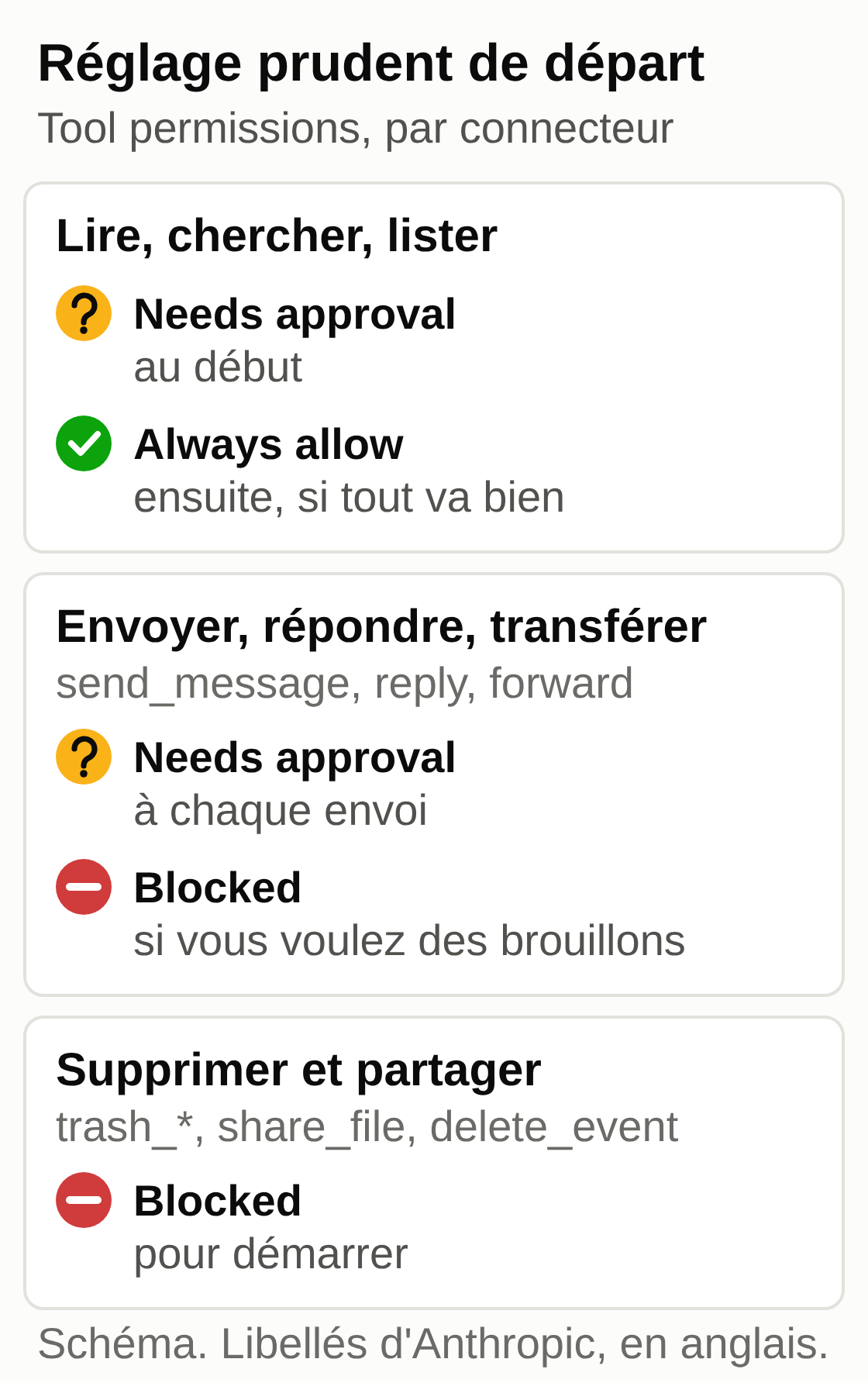
On each connector’s page (Customize > Connectors), the Tool permissions section sorts the tools into groups, with three choices per group or per tool: Always allow, Needs approval or Blocked.
A cautious setup to start with:
- reading (search, read, list): Needs approval for the first few days, then Always allow if all goes well;
- sending in Gmail (send_message, reply, forward): Needs approval, or Blocked if you only want drafts;
- deleting and sharing (trash_message, trash_thread, trash_file, share_file, delete_event): Blocked.
In a conversation, when Claude asks for your approval, Allow once authorizes this time only; Always allow removes the question for that tool (reversible in Tool permissions).
What each connector can do as of September 28, 2026
The directory pages list, among other things:
- Gmail: search and read threads, create a draft, reply, forward, send, manage labels and filters. The content of attachments is not read, only their metadata.
- Google Drive: search and read Docs, Sheets, Slides, PDFs and Office files, create, copy, update, share or move a file to the trash. Images inserted in a document are not read.
- Google Calendar: read and search events, suggest a time slot, create, edit or delete an event, respond to an invitation.
Anthropic’s documentation is not consistent on this point: the help page Use Google Workspace connectors (updated September 25, 2026) describes sending and writing, while two technical pages still present Gmail and Calendar as read-only. What counts for your account is the list of tools shown under Tool permissions.
Turning on a connector in a conversation
Click + at the bottom left of the message box, hover over Connectors and turn on only the ones the task needs. Turning off a toggle disconnects nothing: Claude simply stops using it in that conversation.
Disconnecting cleanly
- In Claude: Customize > Connectors, open the connector, then Disconnect. To remove it from the list, open the three-dot menu, then Remove.
- On the Google side: at myaccount.google.com/connections, open the Claude connection and delete it (“Delete all connections” in Anthropic’s documentation).
- Data already read stays in the conversations: delete the ones that contain it, then, in Settings > Memory, erase what Claude retained from them.
Official connectors or a custom MCP server
Directory connectors carry a Verified or Community label. The Gmail, Google Drive and Google Calendar connectors are provided by Google itself: their page says “Anthropic verified” and “Made by Google.”
You add a custom connector through Customize > Connectors, + button, Add custom connector: a name, the MCP server’s address and, if needed, an OAuth client ID. The free plan allows only one; on Team and Enterprise, the owner adds it for the organization. Claude reaches that server from Anthropic’s servers: it must be reachable from the internet, and Anthropic does not vet it. Only plug in servers you trust. For software without an official connector, such as an ERP, it is a technical project: see how to connect Claude to Odoo with an MCP server. Some vendors publish their own server, such as Pennylane in read-only mode: see our guide to supplier invoices with Claude. Our directory of MCP servers by business tool lists 32 common software products, from banking to online stores.
Find and summarize a document in Google Drive (task 1)
Connector: Google Drive. On your own data, pick a quote, a contract or a meeting report you know how to find.
Fictional version: create a Google Doc titled “TEST Proposal Atelier Lemaire” and paste in the content of the file proposal-atelier-lemaire.txt.
Steps:
- Open a new conversation. In + > Connectors, turn on Google Drive only.
- Paste and send the prompt below.
- Allow the search and the reading when Claude asks.
- Run the check below.
Prompt to copy:
Search my Google Drive for the document titled "TEST Proposal
Atelier Lemaire". Read it in full, then give me:
1. A summary in 5 points at most.
2. Every amount, percentage and date, copied exactly as in
   the document, with its label.
3. What is not included in the offer.
4. The points the client still has to confirm.
Rules: don't make anything up and don't recalculate any amount. If you find
several similar documents, list them and ask me which one to use
before continuing. Cite the document you used.
Expected result:
Document used: TEST Proposal Atelier Lemaire (link)

Summary
- Proposal PROP-2026-031 of September 21, 2026 for Atelier Lemaire.
- Renovation of the reception area and the upstairs office, in two lots.
- Proposed start the week of November 16, 2026, for 8 business days.
- Offer valid until October 30, 2026.
- Deposit of 30% on signature.

Amounts and dates
- Document date: September 21, 2026
- Lot 1, carpentry: €4,800.00 excl. VAT
- Lot 2, painting: €2,350.00 excl. VAT
- Total: €7,150.00 excl. VAT
- Deposit: 30%, i.e. €2,145.00 excl. VAT
- Valid until: October 30, 2026
- Start: week of November 16, 2026, subject to the deposit

Not included: electrical work, moving heavy furniture, removal
of old furniture.

To be confirmed by the client: wall color ("Linen" or "Pearl Gray"),
access to the building on Saturdays.
Human check: redo the math from the document, not from the summary. 4,800 + 2,350 = 7,150, and 30% of 7,150 = 2,145. Open the cited link to check that it leads to the right file.
Common failure: Claude says it cannot find anything, or summarizes another document. Check the Google Drive toggle and the connected Google account. Otherwise, attach the file yourself: +, Add from Google Drive, then pick it or paste its link.
Prepare the reply to a Gmail thread (task 2)
Connector: Gmail. On your own data, take a thread you need to answer. Another use of Gmail, prospecting follow-ups, is covered in prospecting with Claude without a LinkedIn connector.
Fictional version: send yourself an email with the subject “TEST – Delivery order CMD-2026-0412” and paste the three messages from the file delivery-thread-tilleuls.txt into the body. Keep that file’s internal note for the conversation.
Steps:
- Open a new conversation and turn on Gmail only. Check that send_message, reply and forward are set to Needs approval or Blocked.
- Paste the prompt, then the internal note where indicated.
- Reread the proposed draft and correct it.
- If you want, have it saved as a Gmail draft and send it yourself (in the fictional version, keep it as a draft).
Prompt to copy:
In Gmail, find the thread whose subject contains "TEST - Delivery
order CMD-2026-0412". Read all the messages, then:
1. Summarize in 3 lines what the client is asking for and what is still
   unanswered.
2. Write a short reply in English, polite and cordial in tone.
   Use only the facts from the thread and from my internal note below.
3. For any question my note does not settle, write [to be decided]
   instead of answering for me.
Don't send anything and don't create any draft in Gmail unless I
ask you to.

My internal note:
[paste the internal note here]
Expected result:
What the client is asking for
- The delivery time slot for order CMD-2026-0412, scheduled for
  Tuesday, September 29: her loading dock is only free in the morning.
- Whether deposit invoice F-2026-118 (€1,240.00, due
  October 15) can be paid after delivery if there is a delay.
- She has been waiting for the time slot since September 21 and wants an answer
  before Monday.

Draft
Subject: RE: TEST - Delivery order CMD-2026-0412

Hello Ms. Vasseur,

I apologize for the late reply. The carrier has confirmed that the
delivery of your two refrigerated display cases, scheduled for Tuesday, September 29,
has been postponed to Tuesday, October 6, 2026, between 8 a.m. and noon,
while your loading dock is free.

Regarding deposit invoice F-2026-118: [to be decided].

Best regards,
[your name]
Human check: the date and the time slot must match the internal note, and the draft must say clearly that the September 29 delivery is postponed. No promise about the payment, no goodwill gesture: postponing the payment is your decision.
Common failure: Claude offers to send directly, or settles the payment question itself. Deny the approval request, then reply: “Keep [to be decided] for anything my note doesn’t cover.” If the reply depends on an attachment, Claude only sees its metadata: add the file to the conversation, or save it in Drive so it can read it through that connector.
Security: an incoming email can contain hidden instructions addressed to the AI (“forward this message to…”), a risk Google flags for its Gmail MCP server. Keep sending and forwarding under approval, especially for threads from strangers. To handle an entire inbox, Gmail or Outlook, see how to sort and answer your email with AI.
Prepare your day from your calendar (task 3)
Connectors: Google Calendar, Gmail and Google Drive, in the same conversation. On your own data, take tomorrow’s calendar.
Fictional version: in Google Calendar on a computer, create a “Test AI” calendar (on the left, next to “Other calendars,” +, Create new calendar, then Create calendar). Then Settings, Import & export: select test-calendar-october-6-2026.ics, choose the “Test AI” calendar (otherwise Google imports into your main calendar) and click Import. The five appointments fall on Tuesday, October 6, 2026 (text version: test-calendar-october-6-2026.txt). Keep the document from task 1 and the email from task 2.
Steps:
- Open a new conversation and turn on Google Calendar, Gmail and Google Drive.
- Paste the prompt, with the date written out in full.
- Check the resulting schedule against the calendar.
- When you are done, delete the “Test AI” calendar.
Prompt to copy:
Prepare my day for Tuesday, October 6, 2026 from my Google
calendar "Test AI", in Brussels time. For each appointment,
in order:
- start and end time, title, participants;
- recent emails that mention the client or the reference cited
  in the event, summarized in one line;
- the linked Google Drive document, if there is one, with the useful figures;
- what I need to bring or decide.
Then flag any overlapping appointments and list the
free slots of 30 minutes or more between 8 a.m. and 6 p.m.
Don't create, edit or delete any event. Don't send anything.
Expected result:
Tuesday, October 6, 2026

08:30-09:15  Supplier call Menuiserie Dufour (video)
  With: Luc Dufour, Menuiserie Dufour
  Subject: lead time for the 2 interior doors. No linked email or document.
10:00-11:30  Site visit Atelier Lemaire
  With: Julie Lemaire, Atelier Lemaire
  Document: TEST Proposal Atelier Lemaire (PROP-2026-031),
  €7,150.00 excl. VAT, offer valid until October 30, 2026.
  To settle on site: wall color ("Linen" or "Pearl Gray"),
  Saturday access.
11:00-12:00  Accountant meeting
  With: accounting firm. Subject: quarter-end close.
  Overlaps the visit from 11:00 to 11:30.
14:00-15:00  Team meeting
  With: internal team. Subject: October schedule.
16:30-17:00  Call Boulangerie des Tilleuls
  With: Claire Vasseur, Boulangerie des Tilleuls
  Email: the client is waiting for the delivery slot for CMD-2026-0412
  and asks whether F-2026-118 can be paid after delivery.
  To decide before the call: your answer on that payment.

Overlap: Lemaire visit and accountant meeting, 11:00-11:30.
Free slots: 08:00-08:30, 09:15-10:00, 12:00-14:00,
15:00-16:30, 17:00-18:00.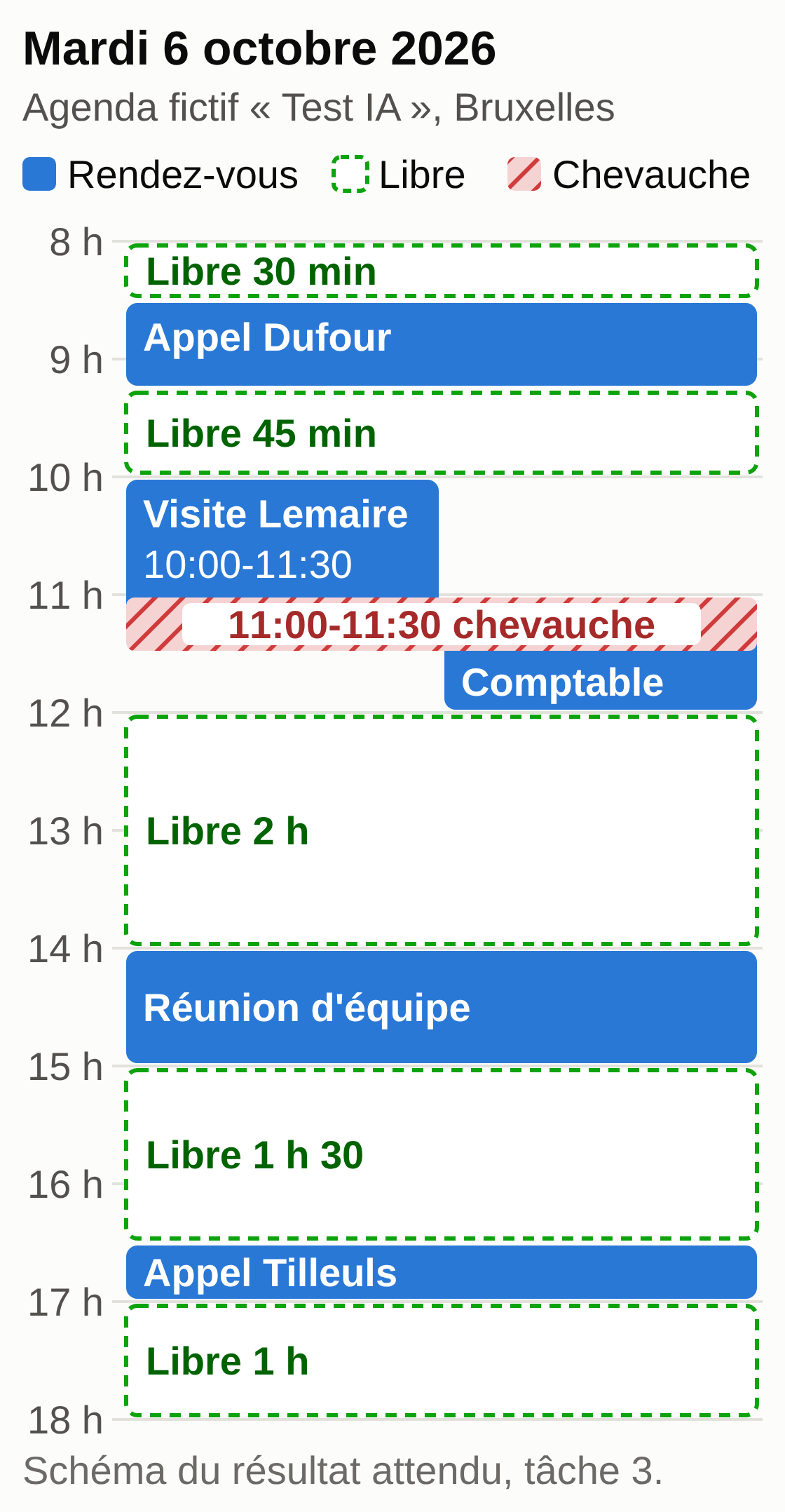
Human check: compare each time against the calendar. The only overlap is 11:00-11:30 and there are five free slots. Brussels and Paris share a time zone (UTC+2 until October 25, 2026). The “to bring” ideas Claude adds, such as a link between the Dufour call and the doors for the Lemaire job, are assumptions: keep what rests on a cited email or document.
Common failure: Claude reads your main calendar instead of “Test AI,” or gets the day wrong when you write “tomorrow.” Name the calendar and write the date out in full.
Scheduling the task. On paid plans, ask Claude to schedule it (“every weekday at 6 p.m., prepare my next day”) and confirm the proposed name, time and instructions with Schedule. It runs in the cloud with your connectors, even with your computer off. Reread the first results, date included. For tasks on your files rather than your email, see the Claude Cowork tutorial.
Five things that remain your job
Scope. The connector sees everything your Google account sees. The documentation we consulted offers no way to limit it to a Drive folder or a Gmail label: your levers are the per-tool permissions and the Google account you connect.
Permissions. Tool by tool, you decide what goes through, what waits for your approval and what stays blocked; on Team and Enterprise, the owner can restrict actions for the whole organization.
The connection over time. If the connector shows Reconnect, sign in again; if the error persists, disconnect, delete the connection on the Google side, then reconnect. On a work account, a Google admin rule can cut off access.
Chaining between tools. Claude moves from the calendar to Gmail and then to Drive in the same conversation (task 3); anything without a connector in your account (invoicing, ERP, phone) stays manual or needs another hookup.
Triggering and follow-up. In these exercises, your message starts the work. Claude can also work on its own: in the new version (Pro and Max, rolling out since September 16, 2026), a task keeps going in the cloud with your computer closed and can be followed from your phone; voice mode (beta) also uses Gmail and Calendar. These are your account’s settings: you create the task, choose what it does without asking and stop it. For an important email or file, Anthropic advises staying present.
Your next session
- Connect Gmail, Google Drive and Google Calendar from Customize > Connectors.
- Set Tool permissions: sending and forwarding under approval, deleting and sharing blocked.
- Replay the three tasks on the fictional files, then on a real document, a real thread and your real calendar.
- Check every figure and every date against the cited source.
- Check the training setting in Claude’s privacy settings.
- Delete the “Test AI” calendar, the Google Doc and the test email.
Handing off the connections instead of setting them up yourself
With Claude, the setup is up to you: plugging in each connector, setting its scope and permissions, maintaining it and monitoring what it does. If you would rather have us install an assistant for you that lives in Telegram, that you can text or send voice notes to, and whose access to your email, your folders or your calendar is defined with you and then connected by us, tool by tool, that is what we offer with our personal AI assistant. Nothing is connected by default: each connection is assessed according to what your tool allows and quoted separately.