

In an entrepreneurs’ group, a craftsman says he spent hours “training” Claude on the manual for a machine in his workshop: excerpts from the manual, explanations, corrections. He used up his plan’s allowance, then bought extra credit and used that up too. The next day, in a new conversation, Claude knew nothing about the machine.
There is a simple explanation. Your explanations in the chat do not change the model you are using: what carries over from one conversation to the next goes through a few specific mechanisms, each with its own role. Memory keeps short facts about you and your work. A machine manual belongs somewhere else, in a project.
This guide is up to date as of October 6, 2026, based on Anthropic’s help center as read that day: what persists and what disappears, the method for giving Claude lasting trade knowledge, and the routine for backing up your work. Claude’s memory changed twice this summer, so be wary of tutorials written before July. The labels quoted below follow Anthropic’s help center, and the interface may word them slightly differently.
Where Claude keeps your information
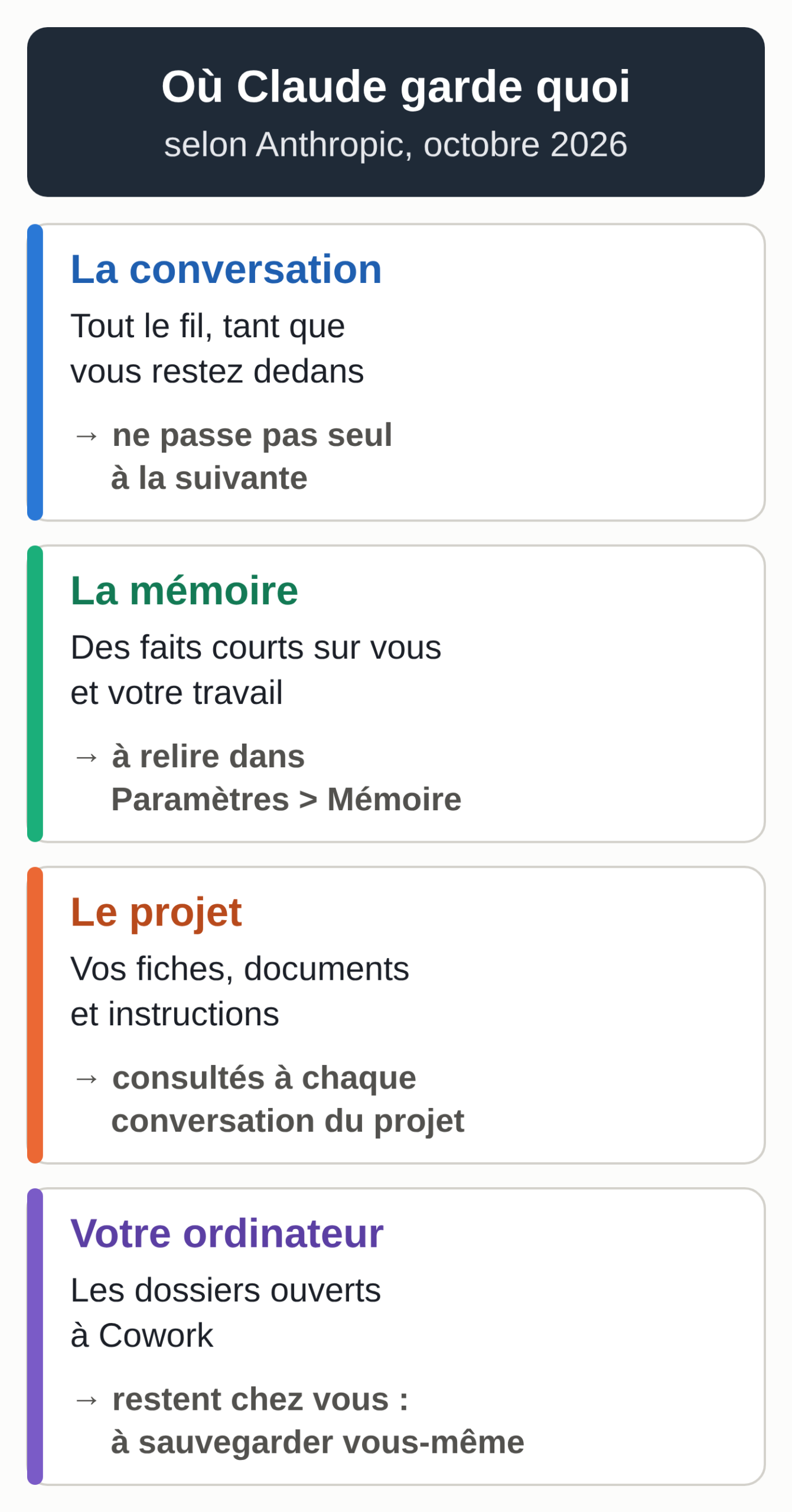
- A conversation. Claude has the whole thread in front of it, as long as you stay in that conversation. This is its working memory, limited by the context window (the amount of text it can process in a single conversation).
- Memory. Short facts drawn from your conversations and sorted by topic in Settings > Memory: your role, your projects, the people you work with, your preferences. It is on by default on Free, Pro and Max.
- Search across past conversations. On paid plans, Claude finds an old exchange when you ask it to.
- A project. Its files and instructions are used as context for every conversation opened in that project, and each project has its own memory.
- Instructions for Claude. Guidelines that apply to all your conversations, set in Settings under “Instructions for Claude.”
- The folders on your computer. With Cowork, Claude reads and writes in the folders you have opened to it, but those folders stay on your machine.
Two kinds of conversations never feed memory: an incognito conversation, which does not go into your history either, and a conversation started with memory turned off, which does stay in your history.
Why “training” Claude in a conversation costs a lot and does not last
Three mechanisms explain the craftsman’s story.
Memory keeps short facts. Anthropic describes what it retains: your role and professional context, the people and places in your work, your communication preferences, the progress of your projects. For Claude to consult forty pages of settings, you have to give it the forty pages.
A long thread costs more: Anthropic names the length of the current conversation, the size of attached files and the model you choose as factors that affect your limits. When a conversation nears the length limit, Claude summarizes older messages to keep going (if code execution is on), and Anthropic notes that these long conversations use up your limits faster. Re-explaining a manual message after message lengthens the thread, and every following reply starts from a longer thread. The settings that limit the damage are in our guide to hitting the limit on Claude Pro.
In a project, the knowledge base is what links conversations. According to Anthropic’s help center, context does not pass from one conversation in the project to another unless the information is added to that base (the project’s memory and search across its conversations do recover some of it). A document uploaded to the project, on the other hand, is used as context in all its conversations. It is also cached: when reused, it counts less against your limits than the same text pasted back into the chat.
Claude’s memory since summer 2026
Memory has changed twice. On July 10, 2026, Anthropic replaced the daily summary of your conversations with separate entries, which Claude reads and updates during your conversations. On August 25, 2026, everything Claude remembers became visible as topics in Settings > Memory, editable one by one, and memory became shared between chat and Cowork when Cowork runs in the cloud.
What you need to know today:
- On Free, Pro and Max, memory is on by default, on the web, the desktop app and the latest version of the mobile app. On Team and Enterprise, the organization owner decides whether it is available, then each member turns it on for themselves.
- Claude saves as the conversation goes, without waiting for the end. You can also tell it “remember that…”.
- Sensitive personal topics (health, ethnic origin, religious beliefs, political opinions, gender identity and related topics) are not retained unless you turn on the sensitive topics option in Settings > Memory.
- Some data is never retained, even on request: ID document numbers, financial account numbers, criminal records, immigration status.
- Deleting a conversation does not delete the memories Claude drew from it. You delete those one by one in memory.
- Each project has its own memory, separate from that of your conversations outside projects.
Reviewing what Claude knows about you
Set aside ten minutes, once a quarter.
- Open Settings > Memory. Everything Claude remembers is listed under Topics.
- Open each topic. Use the edit icon to correct what is wrong or outdated (an old price, a client who left), and use “Delete” to remove what does not belong there. The correction applies to all future conversations.
- Add what is missing by telling Claude in a conversation, one fact per line:
Remember this for our next conversations:
- I'm a self-employed locksmith and metalworker in Namur, with one apprentice.
- My quotes are in euros excluding VAT and valid for 30 days.
- I'm on a first-name basis with private clients and keep it formal with companies.
- My replies to clients are short: five lines at most.
- Open a new conversation and check:
What do you know about my business and the way I work? Answer as a short list. Don't make anything up: if you don't know, say so.
- If something is wrong, fix it right away: “Forget that…” or “Correct this: …”. Anthropic says the update takes effect from the next conversation.
Turning memory off when you need to
- For a single conversation: before the first message, click “+” in the input box and turn off “Memory.” Claude uses nothing from its memory in that conversation and retains nothing from it; it stays in your history. The setting cannot be changed once the conversation has started.
- For a conversation that must leave no trace in your history: incognito mode, with the ghost icon at the top right of a new conversation outside a project. The conversation goes into neither your history nor memory, Anthropic keeps it for 30 days by default, and once closed it cannot be reopened. If you have the new Claude experience, an incognito conversation opens in the old one: Claude does not create files or run code there.
- For the whole account: in Settings > Memory, turn off the “Generate memory from chat history” toggle and choose. “Pause memory” keeps your existing memory without using it or adding to it. “Reset memory” erases everything, including project memory, and it cannot be undone.
Finding an old conversation
On Pro, Max, Team and Enterprise, Claude can search your past conversations, on the web, the desktop app and mobile. On Free, memory exists but this search does not. Plan details and prices (Pro at €18 excluding VAT per month on monthly billing, checked on September 28, 2026) are in our comparison of Claude subscriptions.
Just ask:
Find our conversation about the quote for the staircase railing for the client in Wavre, and bring back the prices we settled on.
The search shows up in the conversation as a tool call, with links to the original conversations. Its scope follows a simple rule: outside a project, Claude searches all your conversations outside projects; inside a project, only the conversations in that project. Incognito conversations never appear. To turn search off, disable “Search and reference chats” in Settings > Memory.
Search finds an exchange. For a decision to serve as a reference (a price, a job-site rule), copy it into a sheet in the project.
The right method: a project, short sheets, brief instructions
Back to the craftsman’s machine, with a fictional press brake, the PX-200. Here is how to give Claude knowledge that lasts without explaining it again every time.
Create the project
Click “Projects” in the left sidebar (or open claude.ai/projects), then “+ New project.” Give it a name, for example “Workshop.” Claude sees neither the name nor the description of the project: they are only there to help you keep track. Projects are available on every plan, with a limit of five on Free.
Upload the documents with clear names
In the project’s knowledge base, on the right of its page, click “+” and upload the machine’s manual. Give each file a name that says what it contains: notice-plieuse-px200.pdf rather than scan0042.pdf. Anthropic recommends descriptive names, which help Claude find the right information. The same method works for your invoices and your purchase price table: see having Claude read your supplier invoices.
On paid plans, when the documents approach the capacity of the context window, the project switches to RAG mode on its own: Claude searches the documents instead of loading everything, which expands the project’s capacity up to tenfold.
Write short sheets
The manual follows the manufacturer’s order. Your questions follow the order of your workshop. A one-page sheet per topic, written in your own words, puts the answer you expect right in front of Claude: the settings you actually use, the error codes you have already run into and their fix, maintenance, the shop’s safety rules. Here is an example, entirely fictional (download the sheet):
Sheet: PX-200 press brake (fictional machine), updated October 6, 2026

Settings used in the shop
- 2 mm steel: V16 die, program 12.
- 1.5 mm stainless: V12 die, program 9.
- 3 mm aluminum: V24 die, program 15.

Error codes already seen
- E07: backgauge not referenced. Rerun homing from the Axes menu.
- E12: low hydraulic pressure. Check the oil level first, then call the technician.

Maintenance
- Greasing the guides: every Monday morning.
- Oil change: by the supplier's technician, never in-house.

Safety
- No bending with the light curtain turned off.

For everything else: search notice-plieuse-px200.pdf and cite the page.
Keep the project instructions brief
Click “Set project instructions.” Anthropic advises keeping them short and focused on the essentials: the project context, the key guidelines, Claude’s role. The details go in the sheets.
You help the workshop (locksmithing and metalwork, three people) use the PX-200 press brake.
Answer first from the project sheets, then from the manual.
State the sheet or the manual page your answer comes from.
If the information is in neither the sheets nor the manual, say so and don't guess.
For any safety question, first restate the rule from the sheet.
Answer in English, in short sentences.
Test with three questions you know the answer to
Open a conversation in the project and ask:
- “Which die and which program for bending 1.5 mm stainless?” Expected answer: V12 die, program 9, according to the sheet.
- “The machine shows E12, what should I do?” Expected answer: check the oil level, then call the technician.
- “What is the maximum ram speed?” The sheet says nothing about it: Claude should search the manual and cite the page, or say it cannot find it.
If an answer makes something up, add to the sheet or tighten the relevant instruction, then ask the question again in a new conversation.
Keep the sheets up to date
When a conversation produces a useful rule, do not count on the conversation to keep it. Ask for the line to add:
Summarize in one to three lines what we just established, in the format of the press brake sheet (the section, then the rule). Don't add anything that wasn't said in this conversation. I'll update the sheet myself.
Then update the sheet on your computer, remove the old version from the project and upload the new one. Also remove files you no longer use: Anthropic recommends this to keep room in the context.
A note on usage: project content is cached and counts less when you reuse it, but that cache expires after a period of inactivity, so after a long break your first message counts that content in full again.
A sheet describes knowledge. For a procedure Claude has to run every time (a quote in your format, a standard reply to customer reviews), a skill is a better fit, and in Claude Code a CLAUDE.md file placed in the working folder is read at the start of each session. Our guide to Claude skills explains where to put each instruction.
Cowork and the folders on your computer
Since October 6, 2026, on Pro and Max, new Cowork tasks run in the cloud, and the option that kept them on your computer is gone from Settings > General. Tasks already started on your computer stay there. Each one shows a note with a button to download its transcript, for example to continue that work in Claude Code.
What this changes for your work:
- Cowork sessions in the cloud and their files are saved in your Claude account, and you can reach them from your computer, the web and mobile.
- Memory is shared between chat and Cowork in the cloud. Sessions that run only on your computer do not use memory, and the memory of local tasks stays attached to those tasks.
- Your folders stay on your computer. Claude only reaches the folders you have connected, through the desktop app, and only while the app is open. When a cloud task needs a file, Claude fetches a copy, which is deleted when you delete the session.
- A Cowork project created from an existing folder on your computer stays on that computer: it is not saved in your account.
In the same group, a Pro subscriber lost two projects and her history after a crash. We do not know what happened on her machine.
The rule to keep in mind: what was created only on the computer (a project made from a local folder, a local task) is not in your account, while conversations and cloud sessions are. Your sheets should live in a folder you back up. To install and configure Cowork, see our guide to Claude Cowork.
Backing up and exporting your work
- Export your data once a month (Free, Pro, Max). On the web or the desktop app, open Settings > Privacy and click “Export data”; the export cannot be started from mobile. The link arrives by email, only opens if you are logged in and expires after 24 hours. The export contains your conversations, your account data and your memory. On Team and Enterprise, only the organization’s primary owner can export.
- Keep a readable copy of your memory. Anthropic suggests asking for it in a conversation, then pasting it into a dated file:
Write out your memories of me word for word, exactly as they appear in your memory.
- Keep the originals of your sheets outside Claude, in a backed-up folder (computer, Drive, company server). The project is where Claude reads them; your folder is where they live.
- For a Cowork task that stayed on your computer, download its transcript from the note at the top of the task.
Two rules before you clean up. A deleted conversation leaves your history immediately and Anthropic’s servers within 30 days. An export cannot be imported into another personal account: it is an archive.
Pro and Max are consumer subscriptions. Before you put client data into them, read the Anthropic terms that apply to your case, and check in Settings > Privacy whether your conversations are used to improve the models. For your accounting documents, our guide to Claude and accounting spells out what to mask before attaching them.
Frequently asked questions
Claude forgot what I told it yesterday. Is that normal?
Check three things. Is memory on in Settings > Memory? Was yesterday’s conversation incognito, or started with memory turned off? Were you in a project, whose memory is separate from that of conversations outside projects? For a whole document, memory is not enough anyway: upload it to a project.
Does Claude’s memory work like ChatGPT’s?
Each tool has its own rules, and they change fast. This guide describes Claude as of October 6, 2026. If you are torn between the two tools, our article Claude or ChatGPT for a small business compares how they are used.
Can you recover a deleted conversation?
Anthropic’s help center describes no trash folder: the conversation leaves your history as soon as you delete it. Hence the monthly export.
Your checklist for the next session
- Review the topics in Settings > Memory and correct what is wrong.
- Create one project per activity or per machine, with one-page sheets.
- Write project instructions of six lines at most.
- Test three questions you know the answer to.
- At the end of a useful conversation, move the rule into the sheet.
- Export your data once a month and keep a dated copy of your memory.
Who maintains this knowledge
Claude already remembers a lot: memory keeps your preferences and projects, the project keeps your sheets. The upkeep falls to you: reviewing topics, updating sheets, exporting every month, deciding what goes where. For a self-employed tradesperson rushing between two jobs, that is one more task. Keeping the memory of your clients, your prices and your habits for you, over months, is exactly the work of a dedicated AI assistant like the one from MACCUS, which you use from Telegram.