

You bill by the day or by the project. Every proposal, every set of minutes and every invoice takes time you do not bill. This guide shows you three specific tasks you can reproduce today with an AI assistant you already use, without installing any technical tool. The examples are fictional and come with the article, so you can run them before you use your real data.
This guide skips the talk about AI’s potential. By the end, you will have three drafts ready to review: a well-scoped business proposal, a meeting action plan, and an invoice prepared from your time tracking.
What you need before you start
An account on a chat assistant. Your choice: ChatGPT, Claude, Gemini (in Google Workspace), Mistral’s Le Chat, or Copilot if you already work in Microsoft 365. For these exercises on fictional data, a free plan can be enough if it gives you file uploads and reusable workspaces (called Projects or Gems depending on the tool).
A paid plan mainly lifts the usage limits and, depending on the offer, unlocks some settings. Check both points in your account.
Look at how your data is handled, plan by plan. On several business plans, content is not used to train the models by default, but that is not a universal rule: read the provider’s terms.
On consumer plans, this reuse may be turned on; find the setting in the privacy settings and turn it off. A training setting alone is not enough for your clients’ personal data.
To learn, use the fictional examples provided, not a real client file. Replacing a name with a label is not enough: that is pseudonymization, the data can still be re-identified, and it falls short of solid anonymization.
As soon as processing involves your clients’ personal data, the GDPR applies and a contract has to govern the use of a service provider. Do not paste a confidential client file into a consumer assistant without that basis.
Every result is a draft. You review it, you correct it, you decide. The assistant signs nothing, prices nothing for you and sends nothing on its own.
The three sample files used in this guide (in French), to download and run:
- brief-client.txt: notes from a scoping call (task 1)
- notes-reunion.txt: notes from a kickoff meeting (task 2)
- temps-aout.csv: a one-month time tracking export (task 3)
From a client brief to a well-scoped proposal (task 1)
This is the task to try first. It needs no connection to your software: you copy your notes, you paste them, you get an outline. To find these clients in the first place, see B2B prospecting with Claude, without scraping LinkedIn.
App: your assistant (ChatGPT, Claude, Gemini or Le Chat).
Sample input (the `brief-client.txt` file provided): the raw notes from a scoping call with a fictional company, “Atelier Dubois”, that wants to redo its website. If you are the one who then builds that site from a mockup made in Claude, see from a Claude mockup to an editable WordPress site.
Steps:
- Open a new conversation.
- Paste the prompt below.
- Under the prompt, paste your call notes (here, the contents of `brief-client.txt`).
- Read the outline it produces. Fill in the price and the workload yourself; the assistant must leave them blank.
Prompt to copy:
You are my business writing assistant. From my call notes below,
write a well-scoped business proposal in English, in a professional
and direct tone.

Expected structure:
1. Context and need expressed by the client
2. Objectives of the engagement
3. In scope
4. Out of scope (what is not included)
5. Deliverables
6. Proposed timeline and stages
7. What you need from me (points to clarify)
8. Terms: price and estimated workload -> leave "[to be completed by the
   consultant]", do not suggest any amount or any number of days
9. Next step

Rules:
- Do not invent any information that is not in my notes. If a point is unclear,
  put it in section 7 instead of guessing.
- Do not promise any firm date if my notes do not give one.
- Stay factual, no superlatives.

My call notes:
[paste the contents of brief-client.txt here]
An excerpt of the expected result:
In scope
- Brochure website of 8 to 10 pages with a quote request form
- Reuse of the existing product photos supplied by the client
- Writing the page copy: [to be clarified, see section 7]

Out of scope
- Nothing is firmly excluded at this stage; the points below are to be
  confirmed with the client, not yet settled

Points to clarify
- Who writes the page copy?
- Is SEO part of this engagement? The client wants to be visible on Google
  but has never done any SEO, and nothing has been agreed
- One-off engagement (website only) or ongoing support?
- Current web host and domain name, unknown at this stage

Terms
- Price: [to be completed by the consultant]
- Estimated workload: [to be completed by the consultant]
Human check: reread the scope. Only list as out of scope what the client actually ruled out; a point that is still uncertain (SEO, hosting) goes into the points to clarify, not out of scope, and missing access details do not prove that something is outside the engagement.
Add the price and the workload yourself. Pricing a flat fee and judging a project risk are your business decisions, not the assistant’s: let it produce the outline and set the amounts yourself.
Common mistake and fix: the assistant invents a timeline (“delivery within 4 weeks”) or a rate. If it does, delete the line and run it again with a firmer instruction: “Remove any date and any amount I did not give you.” Keep the brackets until you have decided.
From meeting notes to an action plan (task 2)
After a meeting, you have a page of rough notes. The assistant turns them into usable minutes, with clear actions.
App: your assistant. Sample input: the `notes-reunion.txt` file provided (a fictional kickoff meeting with Atelier Dubois).
Steps:
- New conversation.
- Paste the prompt, then your raw notes.
- Check every action, every name and every date against your notes.
Prompt to copy:
Turn my meeting notes below into structured minutes in
English. Return exactly these four blocks:

1. Decisions made
2. Actions to take, as a table: action | owner | deadline
3. Open questions (not settled during the meeting)
4. Next step

Strict rules:
- Only assign an action or a date if it clearly appears in my
  notes. Otherwise, write "to be confirmed".
- Do not invent any participant's name.
- Keep what was decided clearly separate from what is still open.

My notes:
[paste the contents of notes-reunion.txt here]
An excerpt of the expected result:
Actions to take
| Action                                   | Owner       | Deadline        |
| Send the photo library                   | Sophie Merel| to be confirmed |
| Send back a scoped phase 1 proposal      | Consultant  | to be confirmed |
| Ask for the current web host             | Sophie Merel| to be confirmed |

Open questions
- Who writes the page copy (not settled)
- The scope beyond the phase 1 scoping work (website only or more)

Next step
- The consultant sends back the phase 1 proposal; Sophie passes it on to
  the owner, Mr. Dubois, who decides and signs. Sophie is on vacation the
  week of September 21: sending it to her before then would be convenient,
  to be confirmed with her.
Human check: verify the owners and the deadlines. In the example, no deadline was agreed: the notes only say that Sophie is on vacation the week of September 21.
Sending her the proposal before then would be convenient, but it is a suggestion to confirm with her, not a commitment. Everything must stay “to be confirmed”; if the assistant turned that vacation date into a firm deadline, correct it.
Common mistake and fix: the assistant invents an owner or turns an assumption into a decision. Restate the rule: “Anything that is not explicit in my notes goes into the open questions or ‘to be confirmed’.”
About transcription tools: Noota, Granola or Fireflies record and transcribe a video call, then produce the minutes automatically. Before you record a meeting, tell the participants and check the tool’s GDPR terms.
Do not record conversations covered by professional secrecy or containing sensitive data without a clear contractual basis. To learn, the copy-and-paste version above is enough and sends out no data you have not chosen.
From a time export to an invoice draft (task 3)
Here, you start from a real file your tools can produce: a time tracking export. Toggl, Clockify and most timers export a CSV file. It is the simplest integration path, with no connector: you export, you attach the file.
App: an assistant that accepts file uploads (or a copy and paste of the CSV). Sample input: the `temps-aout.csv` file provided, with two clients and a “Facturable” (billable) column set to Oui or Non (yes or no).
Steps:
- From your timer, export the month as a CSV. Here, use `temps-aout.csv`.
- Attach the file to the conversation, or paste its contents.
- Run the prompt.
- Recount the billable hours yourself and check the totals before you do anything with them.
Prompt to copy:
Here is a time tracking export (CSV). Columns: Date, Client, Projet,
Tache, Facturable (Oui/Non), Duree_h.

1. Only count the rows where Facturable = Oui. Ignore the Non rows, but
   report the total of non-billable hours separately.
2. Make a summary table by client: Client | Project | Billable
   hours | Amount before VAT, at a rate of €75 before VAT per hour.
3. Add a total row for the billable hours and amount before VAT.
4. Then prepare a draft invoice for the client "Atelier
   Dubois": itemized lines, total before VAT, a 21% VAT line and the total including VAT.
5. End with a checklist of the mandatory invoice details that I
   need to check myself.

Show your calculation hour by hour so I can double-check it. Do not
replace invoicing software: this is a draft.
An excerpt of the expected result:
Summary by client (€75 before VAT / hour)
| Client         | Project      | Billable hours     | Before VAT   |
| Atelier Dubois | Site redesign| 12.0               | €900.00      |
| Clinique Léman | Comms plan   | 7.5                | €562.50      |
| Total billable                | 19.5               | €1,462.50    |
Non-billable hours (not invoiced): 1.5

Draft invoice - Atelier Dubois
- Site redesign, August services: 12.0 h x €75 = €900.00 before VAT
- Total before VAT: €900.00
- VAT 21%: €189.00
- Total including VAT: €1,089.00

Details to check yourself: business name and company number, VAT
number, invoice date and number, client details, payment due date,
statement of the applicable VAT regime.
Watch the VAT rate: the 21% used here is a calculation assumption (the standard Belgian rate), chosen only to show the arithmetic. It does not determine the rate that applies.
The client’s address in Lille is not enough to determine the VAT on the invoice: you need to check the provider’s country, the client’s status and the nature of the service, especially for a cross-border transaction. Set the real rate for your situation before you issue an invoice; here, only the mechanics of the calculation matter.
Human check: redo the sum by hand. Atelier Dubois’s billable rows add up to 2.0 + 3.5 + 2.5 + 4.0 = 12.0 hours; the “weekly client check-in” row at 0.5 h is marked Non and must not be counted. A language model sometimes gets arithmetic wrong: checking the total against the CSV is your safeguard, not a second AI’s opinion.
The final invoice is not produced by the assistant. In Belgium, since January 1, 2026, B2B invoices between VAT-registered businesses established in Belgium must in principle be issued in a structured electronic format (the EN 16931 standard), most often through the Peppol network; the parties can agree on another compliant channel, and some cases remain excluded. A plain PDF by email no longer counts as an invoice.
To prepare your VAT return and your questions for your accountant with Claude, see can Claude replace your accountant?
In France, since September 1, 2026, VAT-registered businesses established in France must be able to receive electronic invoices through an approved platform; the obligation to issue them extends to very small, small and medium businesses on September 1, 2027. The assistant prepares the draft and the summary, and issuing goes through your compliant software. Check the exact rules for your situation on the official websites (impots.gouv.fr, urssaf.fr, or efacture.belgium.be).
Common mistake and fix: the assistant counts a non-billable row, or applies a VAT rate you did not give it. Have it show the detail row by row, correct the rate for your regime (small business exemption, the Article 44 exemption in Belgium, intra-EU VAT for a client in another country), and recount.
Reusing your instructions without starting from scratch
You do not want to paste your context in every time. Projects (Claude), Projects (ChatGPT) and Gems (Gemini) are spaces where you save standing instructions and reference documents, which are picked up in every new conversation in that space.
Create a project called “Consulting engagements” and paste in this block of instructions:
Standing context for this project.
- I am an independent consultant. My field: [your specialty, e.g.
  communications consulting].
- My typical clients: [very small businesses, SMBs, industry].
- My proposal structure: context, objectives, in scope,
  out of scope, deliverables, timeline, terms.
- Tone: professional, direct, no superlatives.

Rules for every answer.
- Never invent a price, a workload in days, a date or a name.
- Mark anything that is not provided as "to be confirmed" or "[to be completed]".
- Always keep what is decided separate from what needs clarifying.
A useful clarification: a Project or a Gem saves reusable context, nothing more. In these exercises, with no connector set up, it applies your instructions but does not act on your tools by itself: you stay in control and you start each task yourself. For these three tasks, a simple reusable space is enough.
Which model to choose for which task
The main providers are OpenAI (ChatGPT), Anthropic (Claude), Google (Gemini), Mistral (Le Chat) and Microsoft (Copilot in Microsoft 365). Each offers several models.
For a quick, simple task (sorting emails, rewording a short paragraph, pulling out two or three pieces of information), a fast and inexpensive model is usually enough. For reasoning work or reading a dense document (analyzing a report, structuring a complex proposal, comparing two sets of minutes), a reasoning model, slower and more expensive, is often worth a try. For sorting the emails themselves, sorting and answering your email with AI in Gmail and Outlook gives the steps.
Compare the two on one of your real tasks before you decide. Model names and prices change often: check the version available in your account and on the provider’s official page.
A few words have a precise meaning and are often confused.
- A model is the engine (for example the GPT, Claude, Gemini or Mistral family).
- A consumer app is the interface where you chat (ChatGPT, Claude, Le Chat).
- A subscription is what you pay to access it, with its usage limits.
- An API is used to plug the model into other software, and it is paid by usage.
- A connector links the assistant to a tool (calendar, Drive, CRM) so it can read or write in it.
- An automation runner (Zapier, Make, n8n) triggers actions based on rules, with or without AI.
If you handle client data, where the answer is computed matters, and it depends mostly on your plan. Consumer interfaces do not guarantee processing in Europe; some business plans, on the other hand, offer data residency in the EU.
Mistral, a French company, highlights European processing. Check this point for your exact plan. The details by provider (data residency, exclusion from training by plan, usage limits) are in the reference article rather than repeated here: choosing your AI model and organizing work across several agents.
A coordinator and sub-agents, from a manual exercise to real orchestration
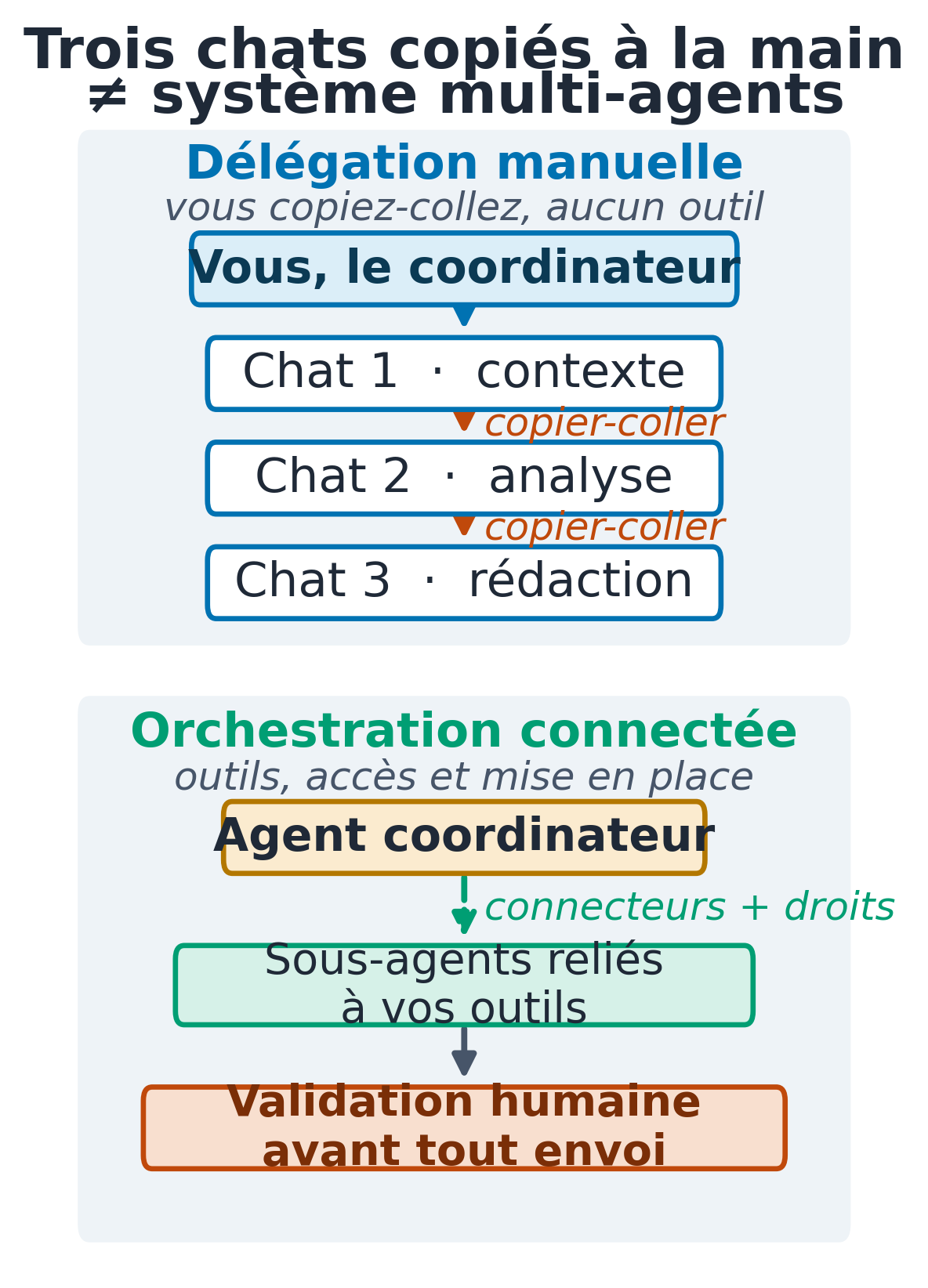
You will often see the idea of a “coordinator” that runs specialized “sub-agents”. The principle is simple: instead of asking an AI for one big task, you break it into stages, and each stage goes to a specific role, which limits errors.
Watch out for a common confusion. Giving three roles in a single prompt (“act as a researcher, then an analyst, then a writer”) is still one model answering in one go, and the three roles never work independently as three agents would. Copying a result from one conversation to another is also manual delegation: you, the human, are the one passing the information along.
A manual exercise you can do tonight, on a fictional project, to prepare a steering committee meeting:
- Chat 1, research: “Summarize the context of Project Alpha (fictional) from these notes: [paste your notes].”
- Chat 2, analysis: paste the summary from chat 1 AND the original notes, then ask “Based on the notes and this summary, sort the points into progress, blockers and decisions to make.”
- Chat 3, writing: paste the sorted points from chat 2 AND the original notes into the new conversation, then ask “Format an outline for a steering committee meeting, formal tone, one page.”
- You review each stage against the original notes, adjust, then send.
Always pass the original notes to every stage, not just the previous summary: otherwise an error that slipped in at stage 1 spreads and grows all the way to the end. You are the coordinator. It is useful, repeatable, and needs no tools.
Real connected orchestration is different. A coordinator agent delegates to sub-agents that actually read your CRM, your minutes or your calendar, exchange information with each other, then propose a deliverable.
That takes tools (Make, n8n, or MCP servers), access and permissions set up on your software, setup and maintenance, and above all a human approval step before anything is sent. A consumer Project does not turn into that system on its own.
The diagram below sums up the difference.
Checklist for your next work session
- Pick an assistant and check that file uploads are turned on.
- On a consumer plan, turn off the reuse of your data for training.
- Create a “Consulting engagements” project with your standing instructions.
- Run the three tasks with the sample files provided; keep your real client files out of a consumer assistant until the processing is properly covered.
- For each result: reread it, recount the numbers, remove anything the AI invented.
- Keep invoice issuing in your compliant software (Peppol in Belgium, an approved platform in France).
To go further, start with the main guide, using AI in your line of work: start with one concrete task, and if invoicing is part of your work, also see AI in accounting firms: preparing documents and checking results.
From occasional use to a workflow that lasts
You can handle these three tasks on your own. What takes time afterward is keeping a regular workflow connected to your tools, with clear rules about what goes out automatically and what waits for your review. If you are torn between a freelance assistant and an AI assistant for this follow-up, compare the rates and what each one does.
MACCUS sets up a personal assistant you reach through Telegram (text, voice notes, documents and images, in French, English or Dutch), configured to run on your own subscription and to follow your working rules.
Connections to your tools (calendar, Drive, email, ERP) are looked at case by case based on your access and your constraints, they are not switched on by default, and anything outgoing goes through the approval step you choose. If you want to talk it through based on the way you work, let’s discuss your workflow and your connections.