

You don’t need to understand how a language model works to put one to good use this week. You need a precise task, a safe example, and a method to check the result. This guide takes you from an empty account to a first clean deliverable, with made-up data, without installing anything and without putting any customer data at risk.
The goal fits in one sentence: pick a repetitive, text-based task, have a consumer AI handle it, then check what it produces. You’ll adapt the method to your real files later, but only once the data precautions described below are in place; this exercise alone is no basis for that. Each section ends with a checkpoint so you don’t move on before you have a result in front of you.
By the end, you’ll know how to do three things: spot a good first task, produce a first complete workflow, and play the role of checker. You’ll also see where a consumer assistant stops and where a real automated system begins, two things people often confuse.
The minimum vocabulary, in one minute
Five words come up everywhere. Telling them apart saves you from poor choices and wasted money.
- The model is the engine that generates the text. GPT at OpenAI, Claude at Anthropic, Gemini at Google, Mistral’s models. Each provider offers a fast, inexpensive model for simple tasks, and a slower reasoning model for long documents and analysis.
- The consumer app is what you open in your browser or on your phone: ChatGPT, Claude, the Gemini app, Mistral’s Le Chat, Microsoft 365 Copilot in Office. That’s where you work day to day.
- The subscription decides what you’re entitled to. A free account is enough for the first trials in this guide. Some features require a paid plan. You verify privacy guarantees in the product’s terms: paying alone doesn’t prove them. Check availability and price in your account when you pay, because price lists change often. For Claude, see the guide to the Pro, Max and Team plans.
- The connector links the AI to software you already use, for example Google Drive, Gmail or a calendar. Several approaches exist side by side; one of the main open standards is MCP (Model Context Protocol), which lets an app like Claude or ChatGPT read from and write to external tools once you’ve authorized it. Each tool then defines what approval it requires, and there is no single rule shared by every app. Our directory of MCP connectors for small businesses lists, software by software, the available servers and their level of access.
- The automation engine runs tasks on its own, on a trigger or at a set time. Zapier, Make and n8n are the common examples. It’s what turns an assistant you drive by hand into a process that runs without you.
The first exercises use only the consumer app and copy-paste. Connectors and automation come later, once the task is stable and you already know how to check it.
First exercise, choosing your first task
Most disappointments come from a poor first choice: a task that is too vague, too risky, or impossible to check. A good candidate checks four boxes. The task is repetitive: you do it every week or every month.
It deals with text and needs no expert judgment. Its result can be checked in a few minutes. And you can test it on a made-up example, with no personal data.
The following table sorts common tasks with this filter. It applies to most professions.
| Light | Type of task | Examples |
|---|---|---|
| Green, do these first | Rewording, structuring, summarizing, sorting text | Cleaning up meeting notes, summarizing a long email, sorting messages by topic, writing a first draft of a standard reply |
| Orange, with strict checking | Extracting figures, comparing documents, preparing a draft with figures | Extracting the amounts from an invoice, comparing two quotes, preparing a payment reminder to a customer |
| Red, not for a first try | Expert decisions, legal or medical acts, sending or filing without review | Making a diagnosis, approving a tax return, sending a message to a customer without rereading it, deciding on a price |
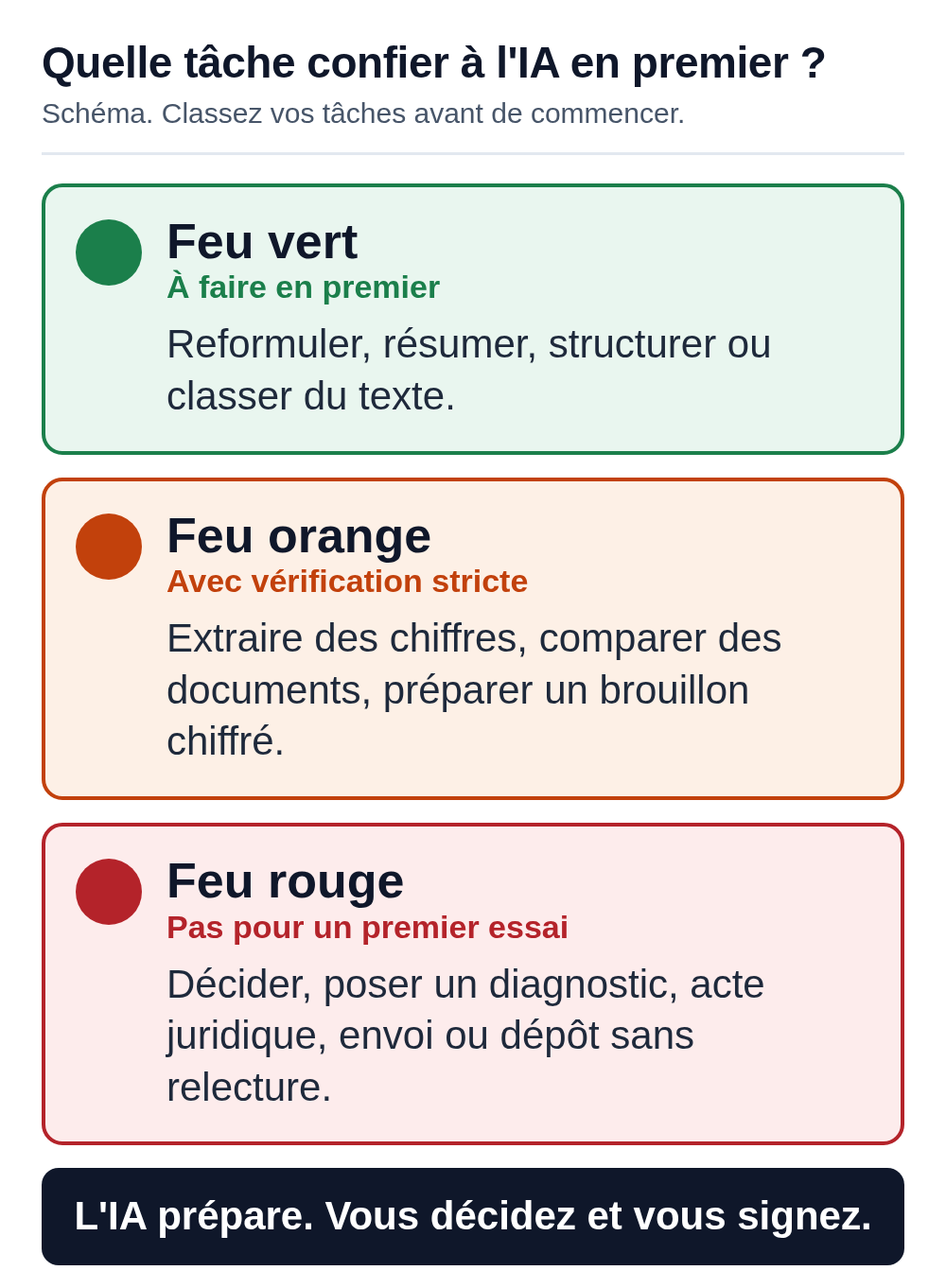
The red rule matters most: an AI doesn’t take responsibility in your place. It prepares, you decide. An amount, a legal deadline, advice given to a customer all still carry your signature.
Checkpoint. On a sheet of paper, write down three text-based tasks you repeat. Give each a green, orange or red light. Keep one green task for the next exercise. If you can’t find one, take the one from the example below: cleaning up meeting notes.
Second exercise, your first complete workflow
You’re going to turn raw notes into a clear meeting summary and a short follow-up email. Everything is done by copy-paste, without connecting any software. It’s the safest way to start.
A free account and a sample file
- A free account on a consumer app. ChatGPT (chatgpt.com) or Claude (claude.ai) both work. Create the account with your email address.
- A sample file with no real data at all. Use the file provided with this guide,
notes-atelier-fictif.txt, or paste the text below. It describes a made-up meeting at a fictional company.
Contents of the example:
Internal workshop - Example LLC - meeting of March 3 (raw notes, fictional example)

Context: three people from the team (no real names), getting ready to restart operations after the summer.

- Supplies inventory is back in the green, order received on February 28.
- Two fictional prospects (Prospect A and Prospect B) are waiting for a quote before March 15.
- The website has displayed badly on mobile since the last update, needs a quick fix.
- Idea to test: offer an online appointment slot for one month, then decide.
- Marketing budget: nothing decided, to be discussed again at the next meeting.
- A supplier's January invoice is missing, someone needs to call them.
- Next meeting: March 17 at 9 a.m.
Create a reusable workspace
Instead of a throwaway conversation, create a space that keeps your instructions from one use to the next. In Claude, the feature is called Projects. In ChatGPT, it’s also called Projects.
In the Gemini app, they’re called Gems. You add your instructions there once and, if needed, reference documents; they then apply to every conversation opened in that space. Such a space remains a workplace you drive by hand: it doesn’t start anything on its own and only connects to your software if you set it up to do so.
- Open your app and create a project named, for example, “Meeting summaries”.
- In the project’s instructions field, paste the reusable block below. These instructions will apply to every conversation opened in this project.
If your account doesn’t offer a project space yet, that won’t stop you: paste the same instructions at the top of each new conversation.
Project instructions to paste once:
You help me clean up meeting notes in English.
Rules:
- Don't add any information that isn't in my notes.
- If a date, an amount or an owner is missing, write "to be confirmed" instead of making one up.
- Never turn an idea, a lead or a proposal into a decision. A decision only exists if the notes explicitly say it was made; otherwise, write that no decision is recorded and keep the proposal as a point to decide.
- Structure the answer as: Decisions, Actions (with owner and deadline when they are given), Open items (to decide). End with a short Information section for background facts already known (inventory status, next meeting), without presenting them as decisions.
- Then write a short, neutral follow-up email, in a polite, professional tone, with no empty phrases.
- Don't use em dashes.
Run the task
- Open a conversation in this project and paste the following prompt, followed by your notes.
Ready-to-copy prompt:
Here are the raw notes from a meeting. Apply the project instructions:
produce a structured summary (Decisions, Actions, Open items,
then Information), then a short follow-up email to the team. Don't add anything
that isn't in the notes. Here are the notes:

[paste the contents of notes-atelier-fictif.txt here]
The expected result
You should get a summary close to this one, then an email. The details come only from the notes.
Summary - Example LLC - meeting of March 3

Decisions
- No firm decision is recorded in these notes.

Actions
- Prepare a quote for Prospect A and Prospect B, deadline March 15, owner to be confirmed.
- Fix the website's mobile display, timing "quick", owner to be confirmed.
- Call the supplier about the missing January invoice, owner to be confirmed.

Open items (to decide)
- Idea to test: offer an online appointment slot for one month, then decide. Proposal, no decision made.
- Marketing budget: nothing decided, to be reviewed at the next meeting.

Information
- Supplies inventory back in the green, order received on February 28.
- Next meeting: March 17 at 9 a.m.
The follow-up email repeats these same points in a few sentences, without adding any.
The check, the step nobody should skip
Reread the output against the notes, line by line. You’re looking for one thing only: a piece of information that appears in the summary but not in the notes. A made-up owner’s name, an added date, an amount out of nowhere.
It’s the most common flaw in these models, called hallucination. Here, the owners aren’t named in the notes, so “to be confirmed” is the right answer. If the AI assigned an action to someone, it made that up.
Also check the status of each item, beyond the words themselves. An idea or a lead is still short of a decision. In these notes, the online appointment slot remains a proposal to test; nobody has made the call.
Placing it under “Decisions” would promote a suggestion to the rank of a decision, the opposite error to making things up and just as wrong. And a fact that is already settled, like the inventory status, belongs under Information, as background rather than as a question to decide. To train the whole team in this kind of review, our 45-minute AI training outline devotes an exercise to it.
Common failure and fix
If the model makes things up or embellishes, add a sentence and run it again: “Use only the facts in my notes. For anything missing, write ‘to be confirmed.’ Then list separately what you removed.”
If it turns an idea into a decision, run it again with: “Only list under Decisions what is explicitly decided in the notes; otherwise write that no decision is recorded.”
If the structure goes all over the place, restate the format you asked for (Decisions, Actions, Open items, Information). If the tone is too salesy, ask for a short, neutral email.
Checkpoint. You have a summary and an email that are faithful to the notes, and you’ve checked that no information was added. You’ve just completed a full workflow: input, instruction, output, check.
Third exercise, the checker’s role and what a real agent system is
This exercise separates two ideas that sales language mixes up. On one side, you coordinate several conversations by hand. On the other, a system runs several agents connected to your software. The first is within your reach today. The second requires tooling, access and a setup.
A review pass, done by hand
Take the output from the second exercise. Open a new conversation, in an empty project or even with a different model, and give it the role of reviewer.
Ready-to-copy review prompt:
You are a reviewer. Here are meeting notes, then a summary written from
those notes. Your only task: list the statements in the summary that
aren't supported by the notes, and the important information in the notes that
is missing from the summary. Don't rewrite the summary.

NOTES:
[paste the notes]

SUMMARY TO CHECK:
[paste the output from the second exercise]
You get a list of discrepancies. You decide which ones to fix. You’ve just used two AIs on the same task, but you were the one who copied the text from one to the other and who made the call. This copy-paste between conversations is manual delegation. You are the coordinator.
This matters, because you often read that giving an AI “three roles” in a single prompt is enough to get three agents. That claim is false.
Three roles in one prompt are still a single AI playing three characters in the same conversation. A project space doesn’t turn into an autonomous system on its own either. As long as you carry the information yourself, you are the only agent taking action.
A real coordinator and subagent system
A connected multi-agent system works without you carrying the information from one step to the next. A coordinator AI receives the request, breaks it down, and hands each piece to a specialized subagent, with access limited to its role.
A subagent can have one or more tools depending on what its role requires; the principle is to give it only what it needs. The setup is worth it when a task touches several pieces of software, requires cross-checking, or carries a real risk of error. For a simple, single task, one AI is enough and costs less.
Here is a concrete example, based on the second file provided, factures-fictives.csv. This file lists three made-up invoices. In this fictional example, all three invoices apply 21% VAT.
number,supplier,date,amount_incl_vat_eur,vat_eur
F-2026-014,Fournitures Exemple,2026-02-10,242.00,42.00
F-2026-021,Atelier Fictif,2026-02-18,121.00,21.00
F-2026-022,Transport Demo,2026-02-25,90.75,15.75
The orchestrated workflow would look like this. A reading subagent extracts the amounts from each invoice received. A checking subagent queries your accounting software to confirm that each invoice matches an order and that the amounts agree.
The coordinator adds everything up, spots any discrepancy, and prepares a draft journal entry. A human approval step kicks in before any entry is posted or anything is sent: nothing goes out without your click. You have to build this approval step into the workflow yourself, as a safeguard.
You can already do the reading and calculation part by hand, without connecting anything, to understand what the coordinator would do. Paste the CSV into your app and ask:
Here are three invoices in CSV format. All of them apply 21% VAT.
Add up the amounts including VAT, add up the VAT, and check for each line
that the VAT shown is indeed 21% of the amount excluding VAT (excluding VAT = amount including VAT minus VAT).
Present a small table, then the two totals.
The expected total including VAT is 453.75 euros and the VAT total is 78.75 euros. The VAT rate, 21% here, is set in the instructions: the AI doesn’t have to guess it, it only checks that the figures agree.
The human check is simple and you do it yourself: grab a calculator, add up the three amounts, compare with the total the AI gave. If the figures don’t add up, don’t try to negotiate with the model; redo the calculation and correct it. With figures, never trust a single source.
What’s missing to go from this manual exercise to the real automated workflow is the connector to your accounting software, the access permissions, and a tested setup. That is exactly the work that separates a demo from a tool that runs every day. To prepare that access and those rules in a small business, read what to prepare before installing an AI agent.
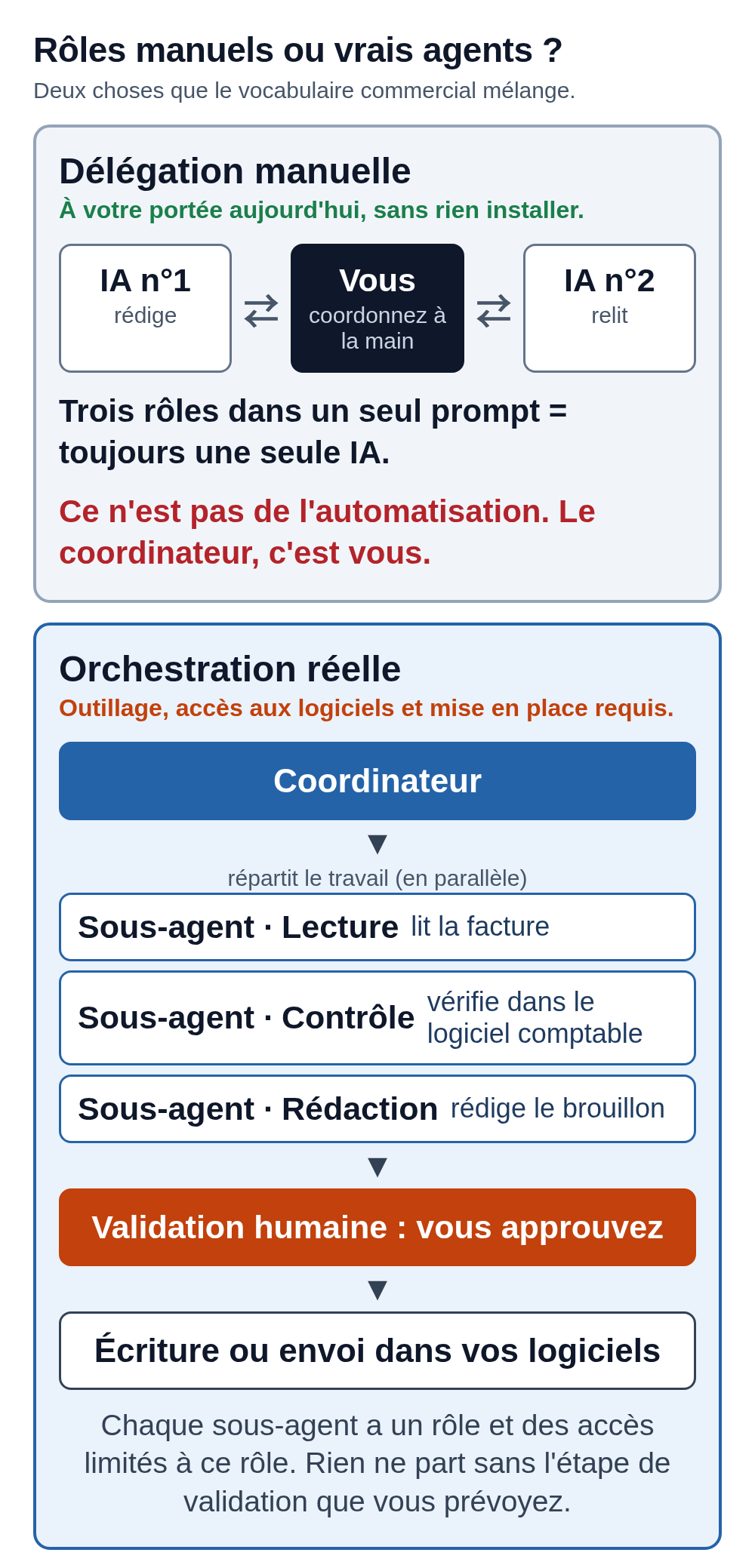
Checkpoint. You know how to have a second AI review an output and make the call yourself. You know how to recognize real orchestration: several agents, connections to your tools, an approval step, clear responsibility. The diagram above sums up the difference.
Choosing a model without getting it wrong
Picking the provider matters less than picking the right model tier for the task. A starting rule, to adjust based on your trials: to sort, reword or summarize, use the app’s fast, inexpensive model; to analyze a long document, cross-check information or write a polished deliverable, use the slower reasoning model.
Treat this as a starting point to test on your own task; model rankings shift too often to fix one here.
The four providers to know are OpenAI (ChatGPT), Anthropic (Claude), Google (Gemini, built into Google Workspace) and Mistral, the French company that highlights data hosting in Europe. Microsoft 365 Copilot is the right choice when your team already lives in Word, Excel and Outlook. Model names and prices change fast, sometimes from one month to the next.
Don’t rely on a dated article: check the exact name and availability on the provider’s official page before you subscribe, and read our reference article, choosing a model and organizing work with several agents, kept up to date with the list of models, usage limits and data residency questions.
Personal data, the starting rule
One simple instruction keeps you out of most trouble: for your first trials, use only made-up examples, as in this guide. Never paste a patient file, a customer contract, a tax return or a list of real addresses into a consumer tool.
The rules on training, retention and data location vary by product and plan. Check the terms and settings that apply, rather than inferring these guarantees from the price or the provider’s country. Then list the tools and plans you allow in a written policy, starting from our AI policy template.
As soon as you want to process real data, especially sensitive data within the meaning of article 9 of the GDPR such as health data, you need to look at the legal basis, the authorizations, data minimization, contractual safeguards and retention, with a check specific to your profession and human approval at the end.
Checking a “don’t train” box or replacing names with pseudonyms isn’t enough to make a file compliant. The article for your profession, below, covers these rules for your specific situation.
The article to read next for your profession
This guide gave you the method. Each article below applies the same approach to the software, tasks and constraints of your profession, in Belgium and France.
- Psychologists and private practices: organizing the practice without exposing patient files.
- Medical and allied health practices: start with the administrative tasks.
- Lawyers: three firm tasks to prepare and check.
- Accounting firms and accountants: preparing documents and checking the results.
- Consultants and freelancers: from the brief to engagement follow-up.
- Web freelancers and small agencies: from a Claude mockup to an editable WordPress site.
- Real estate agencies: from the listing file to client follow-up.
- Restaurant owners: handling the restaurant’s admin tasks.
- E-commerce: product pages, orders and customer replies.
- Building trades: preparing quotes and job-site follow-up.
- Students and PhD candidates: working with verifiable sources.
For details on models, subscriptions and agent setups, keep the reference article at hand: choosing a model and organizing work with several agents.
Your roadmap for the next session
- Choose a single green-light task, repetitive and text-based.
- Prepare an example with no real data at all.
- Create a project and paste reusable instructions into it.
- Run the task with a clear prompt that forbids making things up.
- Check the output against the source, line by line.
- Have a second conversation review it if the stakes justify it.
- Only connect software and automate once the task is stable and under control.
- Then open the article for your profession to adapt it to your tools.
Going further with a configured assistant
Repeating these steps every day, on your real tools, takes time. If you want an assistant to run this kind of workflow day to day, with connections and permissions decided with you and an approval step before anything is sent, depending on the workflow chosen, that’s the service MACCUS offers: a personal assistant you reach through Telegram, by text, voice notes, documents and images, in French, English and Dutch.
It runs on your own Claude subscription, with a setup service followed by a monthly service. Connectors to your software (an ERP, Google Drive, your email or your calendar) are assessed case by case based on feasibility and your permissions, and none is turned on by default.
Files and memory are hosted in France, and part of the processing goes through providers in the United States and through Telegram, so it is neither a fully European solution nor a compliance guarantee in itself.
The service prepares and carries out tasks under your control; it doesn’t make diagnoses, approve legal acts or file returns on your behalf. To talk about it based on your workflow and your tools, write to us from the MACCUS AI assistant page.