

A Claude artifact is the object Claude builds next to the conversation instead of answering you in text: a document, a dashboard, a page, or a small tool you can click on. Ask for advice on organizing your invoices and you read an answer. Ask for a tracking table and Claude builds it for you, ready to use.
It’s the difference between the carpenter who explains how to put a shelf together and the one who delivers it assembled. This guide shows five artifacts a freelancer or small business owner can get in one conversation, with the exact prompt, then how to share them, reopen them and know when to move to a real application.
The sharing rules quoted here come from Anthropic’s help pages, read on October 6, 2026. They change often, so check them before you count on them.
What exactly is an artifact?
Anthropic defines it as anything Claude produces that you would show to someone: a document, a presentation, a dashboard, a mockup or a small interactive tool. It opens in a window next to the conversation. You can edit it, come back to it and share it.
Claude creates one on its own when the content is substantial (usually more than 15 lines), self-contained and reusable. The easiest way is to ask for it: “Create an artifact: …”.
Three things to know before you start:
- Artifacts are available on every plan, including the free one, in Claude on the web and in the desktop app.
- They require the “Cloud code execution and file creation” option to be turned on in Settings > Capabilities. On Team and Enterprise, this setting is in the organization settings.
- Everything you create is stored in the “Artifacts” tab of the sidebar. You can find it without hunting for the right conversation.
Since September 16, 2026, artifacts have worked differently. Those created in a conversation before that date are now called “legacy artifacts”: they still work and can still be published or shared, but you can no longer create new ones. If a tutorial mentions a “Publish” button, it is usually describing that older generation.
Artifacts by plan
You can create an artifact on any plan. Sharing it, having it keep data or connecting it to your apps requires a paid plan.
| Free | Pro and Max | Team and Enterprise | |
|---|---|---|---|
| Create artifacts | yes | yes | yes |
| Share a new artifact | no | link or email invitation | within the organization; outside it depending on an owner’s settings |
| Keep data between visits | no | yes, 20 MB of text | yes, 20 MB of text |
| Connect to your apps | no | yes | yes, unless an owner turns it off |
Pro costs €18 per month excluding VAT on monthly billing, or €15 per month excluding VAT on annual billing (prices recorded on September 28, 2026, unchanged in dollars on Anthropic’s pricing page on October 6). The plans are covered in detail in our guide on which Claude plan to choose. If the “limit reached” message often stops you, see understanding Claude Pro’s usage limits. If you pay for Pro or Max for your business, read the Anthropic terms of use that apply to your account.
Five artifacts to ask Claude for
The full prompts are in prompts-artefacts.txt (in French). All the data is fictitious: replace the rates and names with your own. If you often rebuild the same tool, store your rates and instructions in a Claude skill so you don’t have to paste them again.
What was tested for this guide, on October 6, 2026: for four of these tools (1, 2, 3 and 5), Claude (the Opus 5.5 model, outside the claude.ai app) wrote a version from these prompts. They were opened in a browser with no network connection, at 390 and 1,440 pixels wide, and each calculation was compared with an independent recalculation: all correct, no script errors. Display inside the Claude app was not tested, and the version Claude writes for you will be different, so run these checks again on yours.
1. A quote calculator
Who it’s for: tradespeople, service providers, any business whose price depends on a few variables (area, quantity, options).
Create an artifact: a quote calculator for my painting business
(Peinture Lemaire, a fictitious example). A single HTML page, in English,
readable on a phone.

Fields: wall area in m², ceiling area in m², number of coats (1 or 2),
walls to fill and sand (yes or no), discount in % (0 to 15),
VAT rate (list: 21%, 6%, 20%, 10%).

Rates excluding VAT: walls €9.00 per m² per coat; ceilings €11.00 per m²
per coat; filling and sanding €4.00 per m² of wall; travel, flat fee
of €45.00.

Calculation: each line rounded to the cent, subtotal excluding VAT, discount
applied to the subtotal, total excluding VAT, VAT, total including VAT. Show
the breakdown line by line, in the format €1,234.56, and recalculate on every
change. Add below the total: "Indicative estimate, the final quote follows the visit."
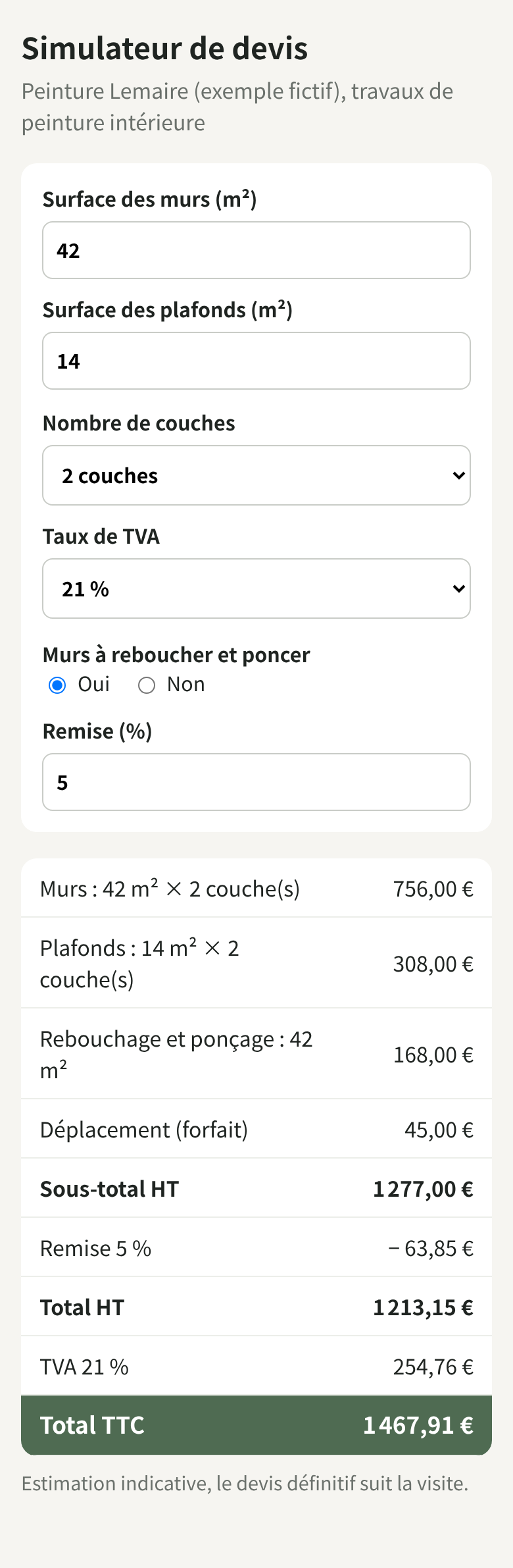
The result: a form and a table that updates with every entry. With 42 m² of walls, 14 m² of ceilings, two coats, filling, a 5% discount and 21% VAT, the tool shows a subtotal of €1,277.00, €1,213.15 excluding VAT and €1,467.91 including VAT, the exact values.
Limits: the VAT rate doesn’t pick itself, and it’s up to you to know which one applies to each job. The calculator gives an estimate: it numbers nothing, saves nothing and doesn’t carry the legally required details of a quote. Check the amounts once with a calculator before you show it to a client.
2. A dashboard from a CSV export
Who it’s for: anyone who exports their sales, invoices or hours from a piece of software and wants to read them at a glance.
First attach your file to the conversation (here ventes-t3-2026.csv, 20 fictitious invoices, in French), then send:
Here is the export of my sales for the quarter (semicolon separator,
amounts excluding VAT with a decimal comma). Create a dashboard artifact,
a single HTML page in English, with:
1. three figures at the top: revenue excluding VAT, number of invoices,
   average amount per invoice;
2. a bar chart of revenue excluding VAT by month;
3. clients ranked by revenue, from largest to
   smallest;
4. revenue by service.
Write the data into the artifact. Add an area where I can paste
next quarter's export in the same format to update the
dashboard. Amounts in the format €1,234.56. No external library.
The result: €11,880.00 excluding VAT across 20 invoices, €594.00 on average, €5,250 in July, €1,940 in August and €4,690 in September, and the ranking of the six clients. Pasted into the update area, a new export replaces the figures; a file in the wrong format shows an error message instead of wrong numbers.
Limits: the data is written into the artifact. Sharing it means sharing your figures and your client names. Check the total once against your software: one misread separator or comma is enough to throw off the whole dashboard.
3. A client brief form
Who it’s for: agencies, consultants, photographers, any business that asks every new client the same questions.
Create an artifact: a brief form for a new client of my web agency,
a single HTML page in English. Fields: company name, contact person,
email, business in one sentence, main goal of the website (list: sell
online, be found locally, take appointments, present the company),
pages wanted (checkboxes: home, services, pricing, portfolio,
contact, blog), desired launch date, budget (list of
ranges), notes. A "Generate summary" button displays a
plain-text summary, ready to paste into an email, with a "Copy"
button. The required fields are company, contact and
goal; flag any that are missing.
The result: a form that refuses to produce the summary while one of the three required fields is missing, then a clean eight-line text to copy into an email.
Limits: to be clear, the form doesn’t send anything. You fill it in during the call, or the client fills it in and pastes you the summary.
Having your clients fill it in remotely doesn’t work well: each of them would need a Claude account to open it, and artifact storage isn’t an inbox. With personal storage, only the person who entered the answers can see them; with shared storage, everyone sees everything. To collect briefs, a real online form is still the right solution.
4. A simple offer page
Who it’s for: you want to present a service on a single page, show it to a prospect or test it before adding it to your website.
Create an artifact: a one-page offer for my "Turnkey brochure
website" package (fictitious example). Content: a headline, three
concrete benefits, what's included (5 pages, copywriting, retouched
photos, launch), the process in four steps, three frequently asked
questions and a "Request a quote" button that opens an email to
contact@exemple.test. Simple style, sage green and white, readable
on a phone, in English. No invented testimonials, no invented
figures.
The result: a complete page, ready to proofread. This prompt was not tested for this guide; reread every promise before you show the page.
Limits: a shared artifact requires a Claude account to open, so your prospects won’t be able to see it without creating one. On paid plans, the “Design” template exports to standalone HTML; otherwise, ask Claude for the complete code in a single file. To put it online on your website, follow our method for moving from a Claude mockup to WordPress.
5. A margin calculator
Who it’s for: shops, resellers, tradespeople who buy supplies. Markup and margin are easy to confuse, so this calculator shows both.
Create an artifact: a margin calculator for my shop, a single
HTML page in English, with two tabs.
Tab 1, "I have a price": purchase cost excluding VAT and selling price excluding VAT. Show
the profit in euros, the markup (profit divided by purchase cost),
the margin (profit divided by selling price) and the price
multiplier (selling price divided by purchase cost).
Tab 2, "I'm aiming for a margin": purchase cost excluding VAT and target margin
in %. Show the selling price excluding VAT to charge (cost divided by 1 minus the
margin) and the profit in euros.
Two decimals, amounts in the format €1,234.56, rates in %. Explain in one
line under each result the difference between markup and
margin. A clear message if the selling price is lower than the cost or if the
target margin reaches 100%.
The result: for an item bought for €40 and sold for €64 excluding VAT, €24.00 of profit, a markup of 60%, a margin of 37.50% and a multiplier of 1.60. To aim for a 35% margin on the same item, you have to sell it for €61.54 excluding VAT. A sale at a loss and a 100% rate each show a warning.
Limits: the calculator knows nothing about your fixed costs or your supplier discounts. Its formulas are written out in black and white in the prompt, so you can check them before you rely on them. To keep the purchase cost up to date from your invoices, see how to have Claude read your supplier invoices.
Sharing an artifact: who sees what
A typical case: you built an inventory management tool as an artifact on the free plan, and you can’t share it with a colleague. That’s expected: on that plan, Anthropic’s help center provides no sharing option for a new artifact.
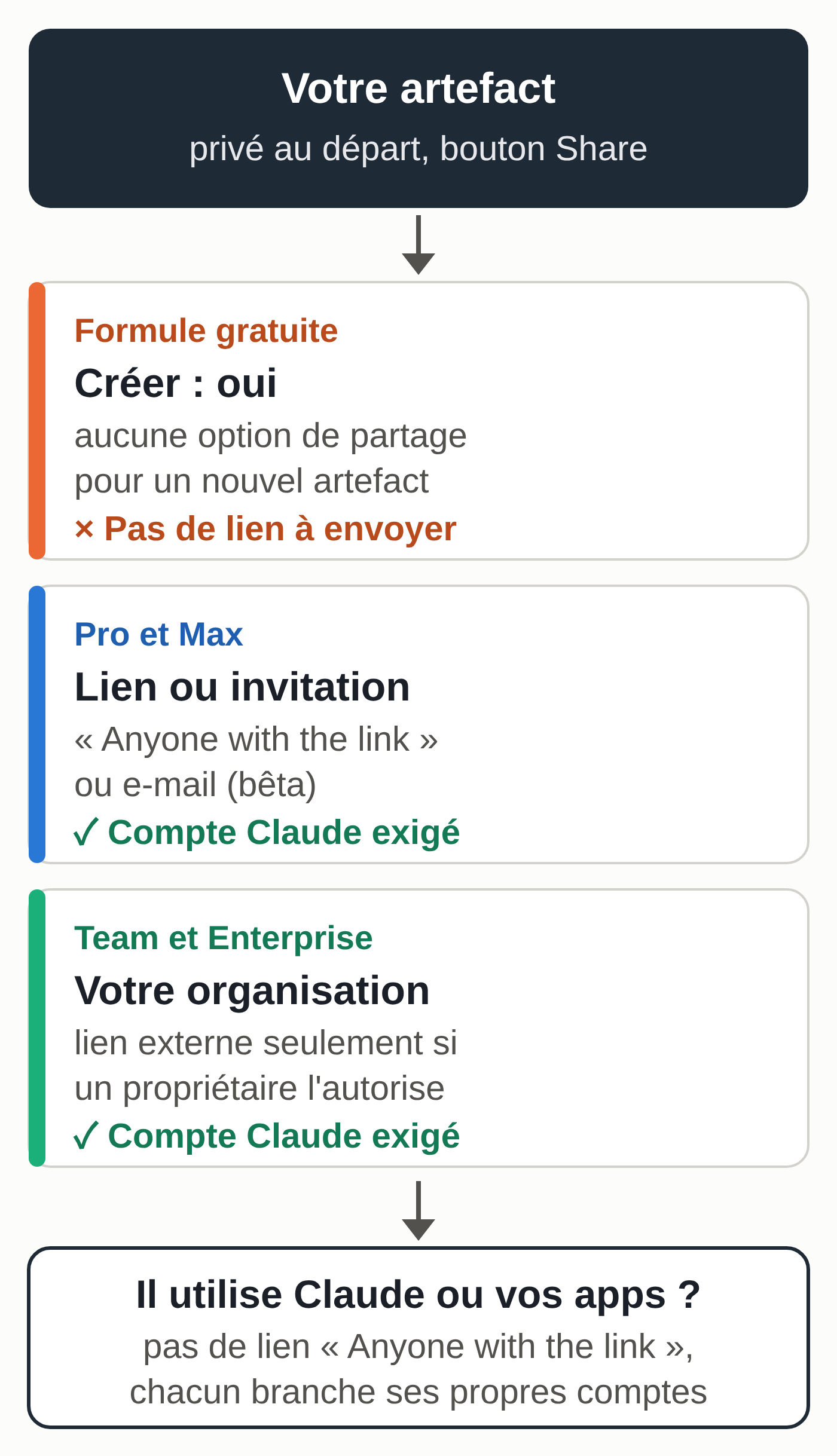
On Pro or Max, here are the steps, in Claude on the web or the desktop app (the iPhone and Android apps don’t let you change sharing):
- Open the artifact and click “Share.”
- Under “Who has access,” choose “Anyone with the link.” The default setting is “Only you.”
- Copy the link and send it.
To give access to one person only, type their email address at the top of the “Share” menu (a beta feature), choose their access level, then “Invite.” The possible levels are “Can view,” “Comment” (comment and download the files offered) and “Can edit,” depending on the type of artifact.
What the other person sees:
- They need a Claude account, even a free one. Without an account, the link won’t open.
- They use their own access. An artifact connected to apps goes through their own connections; if it uses Claude, their usage limits are the ones that count. These artifacts can’t be shared with “Anyone with the link,” and for a person invited by email from outside your organization, the parts that use Claude or your apps don’t work.
- They see the shared data. If the artifact keeps information in shared storage, anyone who opens it sees it. Check this before you enter anything sensitive.
To stop sharing, go back to “Share” and choose “Only you.” On Pro and Max, people invited by email keep their access, so remove them one by one.
For the inventory example, there are two routes. Upgrade to Pro, ask Claude to keep the inventory in shared storage, then share the link with the colleague, who creates a Claude account. Or, easier to back up, keep the inventory in a spreadsheet shared with her.
Older artifacts, created in a conversation before September 16, 2026, keep their rules: on the Free, Pro and Max plans, the “Publish” button gives a public link that opens without an account. Be careful: after “Unpublish,” the artifact can no longer be republished and its stored data is deleted.
To start from someone else’s published artifact (some tutorials call it a “remix”), the help center describes a copy: the “Copy” button, a new conversation, paste the code and describe your changes. Your version is separate from the original. Only import code from people you trust.
Reopening and editing an artifact
- Open the “Artifacts” tab in the sidebar, or the original conversation.
- Ask for the change in one precise sentence: “add a line for Waste removal, flat fee of €60 excluding VAT.”
- Test again with the same values as before, to check that nothing else moved.
To try another direction without losing the first, edit an earlier message in the conversation: Claude creates another version of the chat, with its own artifacts. If the artifact shows an error, the “Try fixing with Claude” button copies the error details into a message to send to Claude, with no guarantee it will work.
When to move from an artifact to a real application
An artifact is enough as long as you’re its only user, or close to it, and nothing serious happens if it stops. Move on as soon as one of these conditions comes up:
- people without a Claude account need to use it (clients, prospects, seasonal workers);
- you need to collect what several people enter without them seeing each other’s entries (with personal storage, you don’t see their answers; with shared storage, everyone sees everything);
- the data is approaching the 20 MB limit per artifact, or includes photos and files (storage only accepts text);
- you need a payment, a numbered invoice or a legal record;
- something has to run without anyone opening the page.
For a website, start with our mockup-to-WordPress guide, then put it online with your domain and a business email address. For an automated sequence (a reminder, sorting), see how to build an AI agent without code. For an internal tool with a database, Claude Code or a developer can use the artifact’s code as the spec. The Word and Excel clones written with Claude, released in October 2026, show how far a project like that can go, and what remains hard.
The limits of an artifact
An artifact is a standalone page with no server behind it: that’s how the Claude Code documentation describes it. It only does something when someone opens it. It doesn’t watch your inbox, doesn’t follow up with a client at 8 a.m. and remembers nothing beyond its storage.
On paid plans, it can read from and write to apps such as Google Calendar, Asana or Slack, with the access of the person who opens it, but only at that moment. Claude can schedule tasks on paid plans, and connecting Claude to Gmail, Drive and Calendar is possible. You still have to choose the access, set it up and monitor what runs.
That’s where an assistant connected to your business comes in. If you’d rather hand off that part, the MACCUS AI assistant lives in Telegram: you write to it or send it a voice message, it remembers your clients and your rates, and we work with you to connect it to the tools you need, case by case.
To do this week
- Turn on the “Cloud code execution and file creation” option in Settings > Capabilities.
- Pick one of the five tools and rebuild it with your real rates or an anonymized export.
- Test it with three cases where you know the answer.
- Before sharing it, check what the artifact contains and whether it uses shared storage.
- Write down what has to run without you: that’s the list of what an artifact won’t do.