

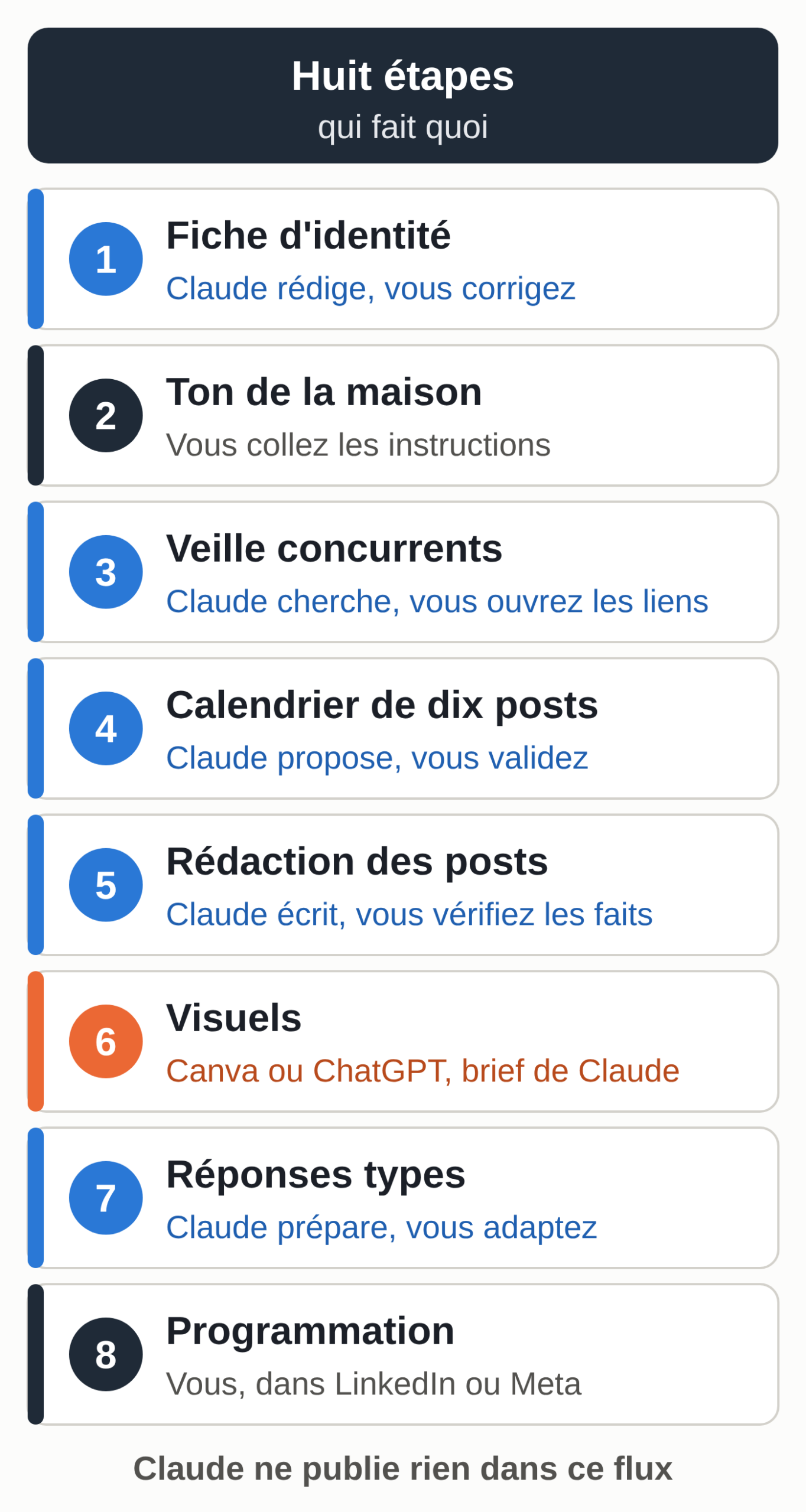
Creating your LinkedIn and Instagram posts with Claude comes down to eight steps: a Claude project holding your company profile, your house style in the project instructions, competitor research through web search, a calendar of ten posts, the writing, visuals in Canva or ChatGPT, template replies to comments, and finally scheduling in LinkedIn or Meta Business Suite.
Each of the first seven steps has its full prompt, ready to copy. On October 6, 2026, we sent three of them to Claude (Sonnet 5.5, through the API) for a fictional business, a cleaning company in Tournai. The excerpts quoted below come from those answers.
Before you start: accounts, notes and tools
- A Claude account. Projects are available on every plan, the free one included, with a maximum of five projects on the free plan. To compare the paid plans, see which Claude subscription to choose.
- Your rough notes: the “about” page of your website, your offer, three or four old posts, the questions your customers often ask. If your website is not live yet, see how to put a site built with Claude online.
- A tool for images, Canva or ChatGPT: Claude does not make photos (step 6).
- Access to your LinkedIn page and your Instagram business account, for scheduling.
Pro and Max fall under Anthropic’s consumer terms of service. If you pay for the subscription through your business, read them before you sign up.
1. Create the project and the company profile
The company profile is the document Claude rereads before every post: what you sell, to whom, your tone, the words you never use and the proof you are allowed to cite. It keeps Claude from inventing a number or slipping into an ad voice.
- In Claude, open “Projects” in the left sidebar (or claude.ai/projects), then click “+ New project”.
- Give it a name, for example “Social media”. Claude reads neither the project name nor its description: everything that matters goes into the instructions and the knowledge base.
- Open a conversation in the project and paste this prompt, with your notes in place of the brackets.
You are going to help me write my company profile. It will be the reference for all my LinkedIn and Instagram posts.

Here are my rough notes:
[paste your "about" page, your offer, three or four old posts and the questions your customers often ask]

Write a profile of one page at most, with these sections:
1. What we sell (offers, service area, prices only if they appear in my notes)
2. Who it is for (two or three customer profiles, each with their concrete problem)
3. What sets us apart (only facts that appear in my notes)
4. Our tone (five writing rules, with an example sentence for each)
5. Words and phrasings to avoid
6. Off-limits or sensitive topics
7. Proof we can use (numbers, certifications, customer reviews cited in my notes)

Do not invent any number, customer or certification. If a section lacks information, write "To be completed" and ask me about it at the end, in five questions at most.
For our test, the notes described “Lumen Nettoyage”, a made-up company: nine employees, offices and medical practices, cleaning visits from 6:00 to 8:30 a.m. or after 6 p.m., no prices. An excerpt from the profile Claude returned:
Prices: no public rates. Free quote after a site visit, sent within 48 business hours.
Post-construction cleaning: To be completed (who orders it, what exact problem?).
“All our products are eco-labeled”: false for the disinfectant used in medical practices.
Claude invented no prices and no customer reviews, and it asked five questions at the end. There was one small error all the same: “9 employees” became “Our team of 9 people.” Is the manager one of the nine? This is the kind of drift to correct in the profile.
- Answer the questions, have the profile corrected, then copy it into a document named “company-profile”.
- Add that document to the project’s knowledge base, with the “+” button on the right of the project page.
According to the help center, the context of one conversation is not shared with the project’s other conversations, except for what is in the knowledge base. Project memory records topics as you go, which does not guarantee the whole profile gets reread: keep it in the knowledge base.
2. Give the project your house style
Click “Set project instructions”, paste the block below, adapt it, then click “Save instructions”. Claude will apply it to every conversation in the project.
You help me prepare the LinkedIn and Instagram posts for [company name].
Before each answer, reread the "company-profile" file in the knowledge base.
Write in English, address customers as "you", use short sentences and one concrete example per post.
Do not use any number, customer, certification or review that is not in the profile. If one is missing, ask for it.
No more than two emojis per post, and none on LinkedIn if the post deals with a serious topic.
No promotional phrases such as "exceptional offer" or "don't miss out".
End each post with a single question or a single invitation, never both.
When I ask for a post, give the LinkedIn version, then the Instagram version, and the list of facts to check.
If you manage social media for several clients, create one project per client. If the same method needs to follow you everywhere, outside any project, turn these instructions into a Claude skill.
3. Research your competitors with web search
Turn on web search: the “+” button at the bottom left of the message box, then “Web search”. In Claude’s new interface, there is no toggle anymore: Claude searches the web when it is useful. Every answer cites its sources.
Search the web for what these three companies publish: [name 1 + city], [name 2 + city], [name 3 + city]. Look at their website, their blog and their public pages.
For each one, sum up in three lines: the recurring topics, the tone, what seems to get reactions.
Then list three topics nobody covers that our company profile lets us cover with proof.
Cite your sources with the link. If you find nothing recent about a company, say so instead of guessing.
What you check: open two or three of the cited links and make sure the summary matches them. The search reads public pages. Your competitors’ LinkedIn and Instagram posts often display poorly when you are not signed in: paste the last three from each into the conversation if you want Claude to read them.
Keep the research summary; you need it for the next step.
4. A calendar of ten posts
Ten posts cover two weeks at a pace of three LinkedIn posts and two Instagram posts a week. Adjust the number to what you can realistically keep up with.
Based on the project's company profile and the research below, suggest a calendar of ten posts for the next two weeks: six for LinkedIn, four for Instagram.

Research: [paste the summary from step 3]

For each post, give in a table: number, network, suggested day, goal (awareness, proof, getting a quote request, hiring), topic in one sentence, format (text only, photo, carousel, short video), visual needed, and the proof from the profile that makes it credible.

Rules: no more than two sales posts out of ten; at least three posts show real work (team, before/after, behind the scenes); no topic copied as is from a competitor; no number that is not in the profile.
An excerpt from the calendar we got for Lumen Nettoyage (four columns out of eight):
| No. | Network | Topic | Proof from the profile |
|---|---|---|---|
| 3 | Medical and allied health practices: cleaning that does not bother patients or delay the first appointment of the day. | Hours 6:00 to 8:30 a.m. or after 6 p.m.; new contract with a physical therapy practice in Antoing (not named) | |
| 5 | On Monday morning, the same person opens up your premises. | Same team every week for the same customer, which is what customers value most | |
| 7 | Windows before/after, with a caption that states the limit: up to the second floor. | Windows up to the second floor |
Claude also checked its own rules (two sales posts, four real-work posts) and flagged a weak spot: “Post 10 is provisional. The profile does not say who orders post-construction cleaning or what their exact problem is.”
What you check: do the days fall when you have time to answer comments? Do the planned photos exist, and have the customers involved agreed to appear?
5. Write each post in your own voice
Use one conversation per post, inside the project, to keep answers short and readable. Keep an example from your own business in every post: on October 8, 2026, LinkedIn announced that its AI slop detector analyzes every post shown outside your network.
Write post no. [number] from the calendar.
LinkedIn: 120 to 180 words, a one-line hook, a concrete example, a closing question.
Instagram: a 60 to 90 word caption, then five specific hashtags (city, trade, topic), no generic hashtags.
Under both versions, list the facts I need to check before publishing.
Before you copy a text, check four points: every number is in the profile, every detail added to make it concrete (a customer’s habit, a room to clean first) is true for your business, no promise goes beyond your real offer (hours, service area, lead times), and the text sounds like you. If a phrasing comes back too often from one post to the next, add it to the words to avoid in the profile: the correction will apply to every post after that.
6. Visuals with Canva or ChatGPT
Claude does not generate photos or illustrations. Anthropic’s help center says so explicitly (“Can Claude produce images?”, French version of the page dated March 12, 2026) and the technical documentation states that Claude analyzes images without creating them. It can, however, draw diagrams and charts in HTML or SVG, in beta on the web and the desktop app: handy for a simple infographic, as Claude artifacts show.
For the rest, there are three routes, checked on the official pages on October 6, 2026:
- Canva from Claude. The Canva connector in Claude’s directory creates new Canva designs from the conversation. Anthropic makes web connectors available on every Claude plan, and Canva makes this connector available to all its accounts, free ones included; Brand Templates require a paid Canva plan, and generating designs can consume your Canva AI credits. To add it: Customize > Connectors, “+” button, Canva, then “Connect”. The guide to Claude connectors explains how the permissions work.
- ChatGPT Images. OpenAI’s help center says image generation is available on every ChatGPT plan. Paste the brief Claude wrote into it.
- Canva on its own. Canva’s pricing page lists, on the free plan, up to 20 uses a month of its AI tools, image creation included.
The prompt that prepares the brief, whatever the tool:
Write the brief for the visual of post no. [number] for an image creation tool.
Format: [square 1080 x 1080 for Instagram | 1200 x 627 for LinkedIn].
Describe the scene, the framing, the lighting and the colors: [your brand colors].
The text shown on the image is six words at most; give it separately, in quotation marks.
Off limits: [what your profile excludes, for example yellow gloves], frozen stock-photo smiles, made-up logos, fake customer reviews.
For a tradesperson or a service provider, a real photo of the work (before/after, team, behind the scenes) is better than a generated image. In our test, Claude’s calendar planned real photos for six posts out of ten, and no generated images. Keep AI for backgrounds, layouts and carousels, and add the text to the image in Canva, where you can correct it letter by letter.
7. Template replies to comments
Prepare them once, store them in the project’s knowledge base, and adapt them to each comment.
Prepare template replies to comments on our posts, in our tone.
Six cases: a compliment, a question about price, a quote request, a complaint from a customer, an unsolicited job application, an aggressive or off-topic comment.
For each case: a public reply of two sentences at most, and what to do next in private.
For the complaint, the public reply acknowledges the problem, offers to discuss it by private message and never argues about the facts in public.
No prices in a public reply.
The reply we got for a complaint:
“We’re sorry to hear you ran into a problem. Could you send us a private message so we can talk it over?”
Claude added some useful guidelines on its own, such as “do not delete a serious criticism, even an unpleasant one: treat it as a complaint.” Its reply to a quote request, though, ran to three sentences instead of two, which it pointed out itself in parentheses. So check each template reply against your own rules before you save it.
8. Schedule the posts
In this workflow, Claude publishes nothing: you copy the texts and visuals into the networks’ own tools.
- LinkedIn: when you create the post, the clock icon lets you pick a date and time, between 10 minutes and 3 months ahead, according to LinkedIn Help. To reach out to companies on LinkedIn yourself, see prospecting with Claude without banned automation. Our guide to GTM engineering describes tool-assisted prospecting, from public registries to the first message.
- Instagram and Facebook: Meta Business Suite lets you schedule a post for later; scheduled content shows up in the planner.
- Canva: Canva’s pricing page puts social media scheduling in the Pro plan.
There are shortcuts from Claude. The Metricool connector in the directory, for example, schedules posts on LinkedIn, Instagram and other networks from the conversation. You then need a Metricool account linked to your networks, and you need to review what goes out, because the post is published at the set time even if nobody has reviewed it.
The time budget we suggest
Once the profile is done, a two-hour session every two weeks can be enough for ten posts:
- Research and reading the sources: 20 minutes.
- Calendar and corrections: 15 minutes.
- Writing and reviewing the ten posts: 45 minutes.
- Briefs and visuals: 30 minutes.
- Scheduling: 10 minutes.
The first session takes longer, because of the company profile and the template replies. This time budget is a starting point: time your first session and adjust.
Where Claude stops in this workflow
With a project and conversations, Claude prepares everything and you do the rest. It schedules nothing until you connect a tool like Metricool. It does not read your comments at 10 p.m. Its memory, on by default on the free, Pro and Max plans and separate for each project, records parts of your conversations. It only sees the text that actually went out on LinkedIn after your edits, and what your customers replied under the post, if you paste them back in.
You can go further one building block at a time: connectors, scheduled tasks in Cowork on the paid plans, a monthly routine to paste back in what was published. You then have to decide what access to grant, check what goes out and react when a post goes wrong.
If you would rather hand this part off, the MACCUS AI assistant lives in Telegram: you send it a voice note after a job, it keeps track of your posts and your customers, and we connect it with you to the tools you need, case by case.
Your to-do list for this week
- Create the project and write the company profile with the prompt from step 1.
- Paste the instructions from step 2 and test them on a single post.
- Pick three competitors and run the research.
- Take ten real photos of your work, with the consent of the customers involved.
- Schedule the first two posts, then read the comments the next day.
The prompts in this article and the fictional example can be downloaded (in French): the seven prompts and the fictional company’s notes.